Coding Mock Interview
Last updated: February 19, 2026
The Coding mock interview uses an AI-powered interviewer to conduct a fully autonomous technical interview in a timed environment.
During the session, you can:
Solve coding problems.
Explain your approach.
Answer follow-up questions.
Interact with the AI interviewer in real time.
After the session ends, you receive a structured, unbiased feedback report.
Note: You cannot provide custom problems to the AI interviewer. Each Coding mock interview uses a predefined set of problems.
Available roles
You can take a Coding mock interview for the following roles:
Software Engineer: Solve algorithm and data structure problems that evaluate problem-solving and coding skills.
Front-end Developer: Solve React, JavaScript, and CSS challenges that evaluate front-end development skills.
Back-end Developer: Solve Node.js, JavaScript, and Express challenges that evaluate back-end development skills.
Prerequisites
Before you begin, ensure you have the following:
Stable internet connection
Working microphone (if you plan to use voice input)
Quiet, distraction-free environment
Note: Block at least one hour of uninterrupted time to complete the mock interview successfully.
Taking Coding mock interview
To take the Coding mock interview:
Log in to HackerRank Community using your credentials.
Go to the Prepare tab.
Locate the Coding card under the AI-powered Mock Interviews section.
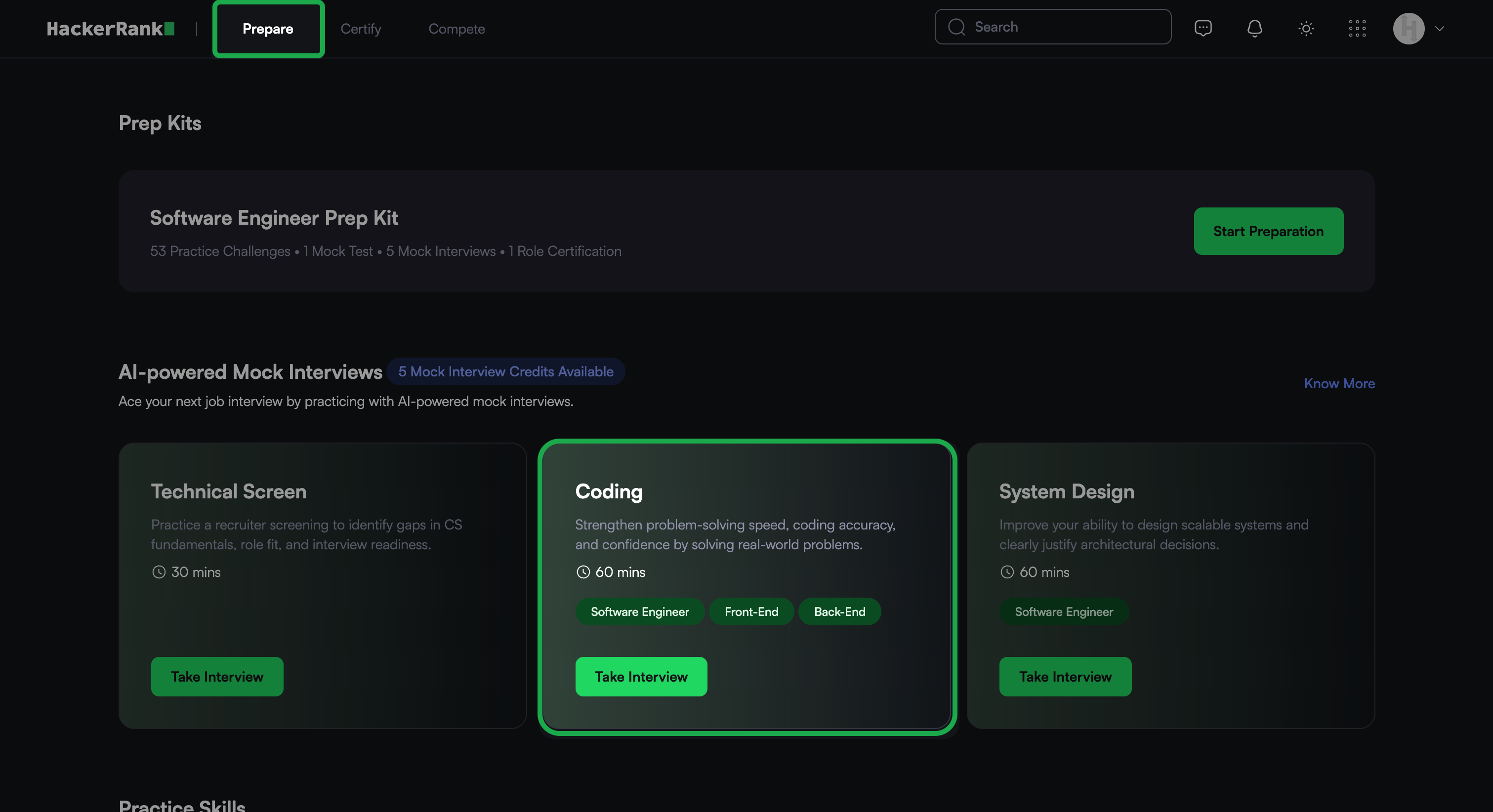
Click Take Interview.
In the Select a Role dialog, select the role you want to take.
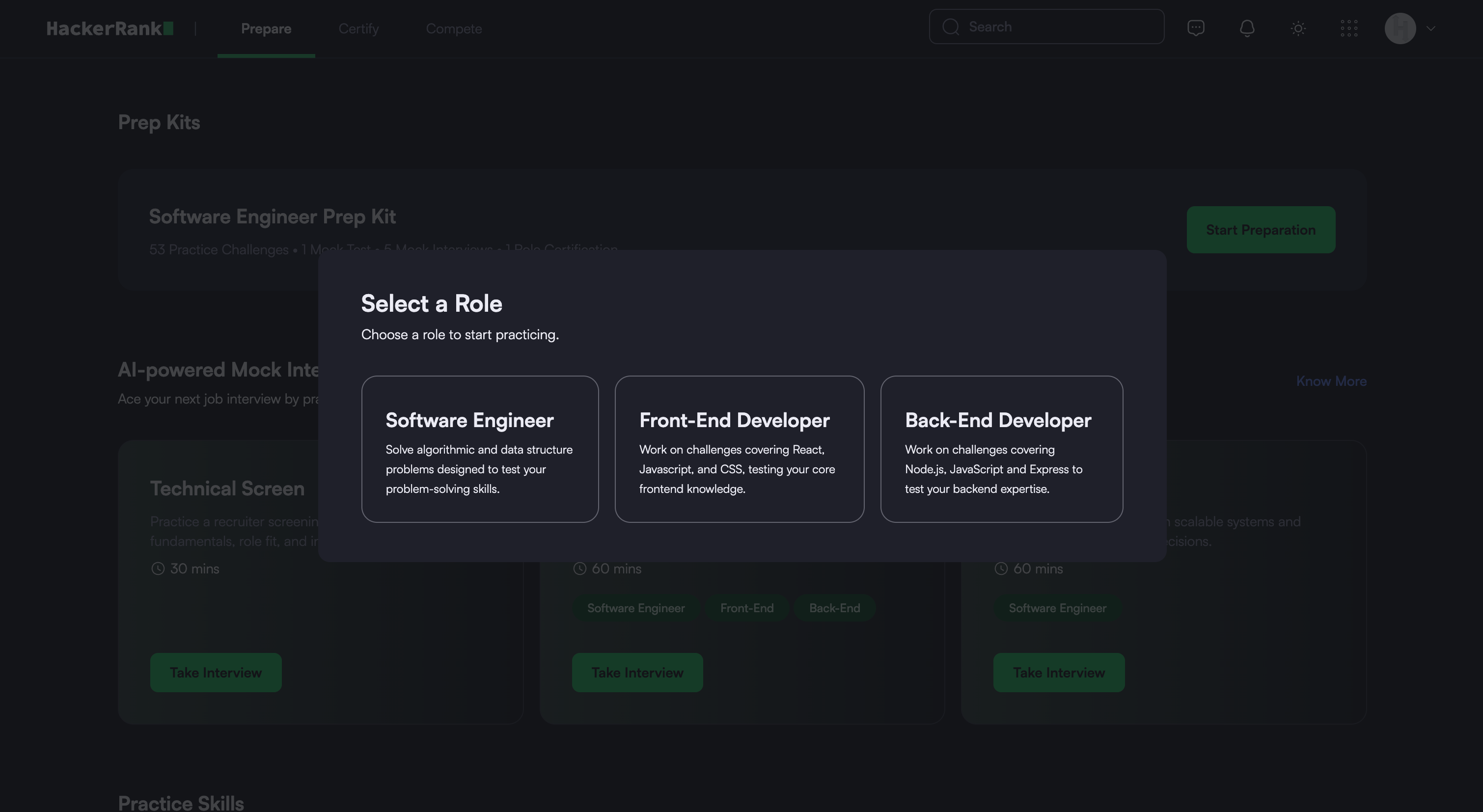
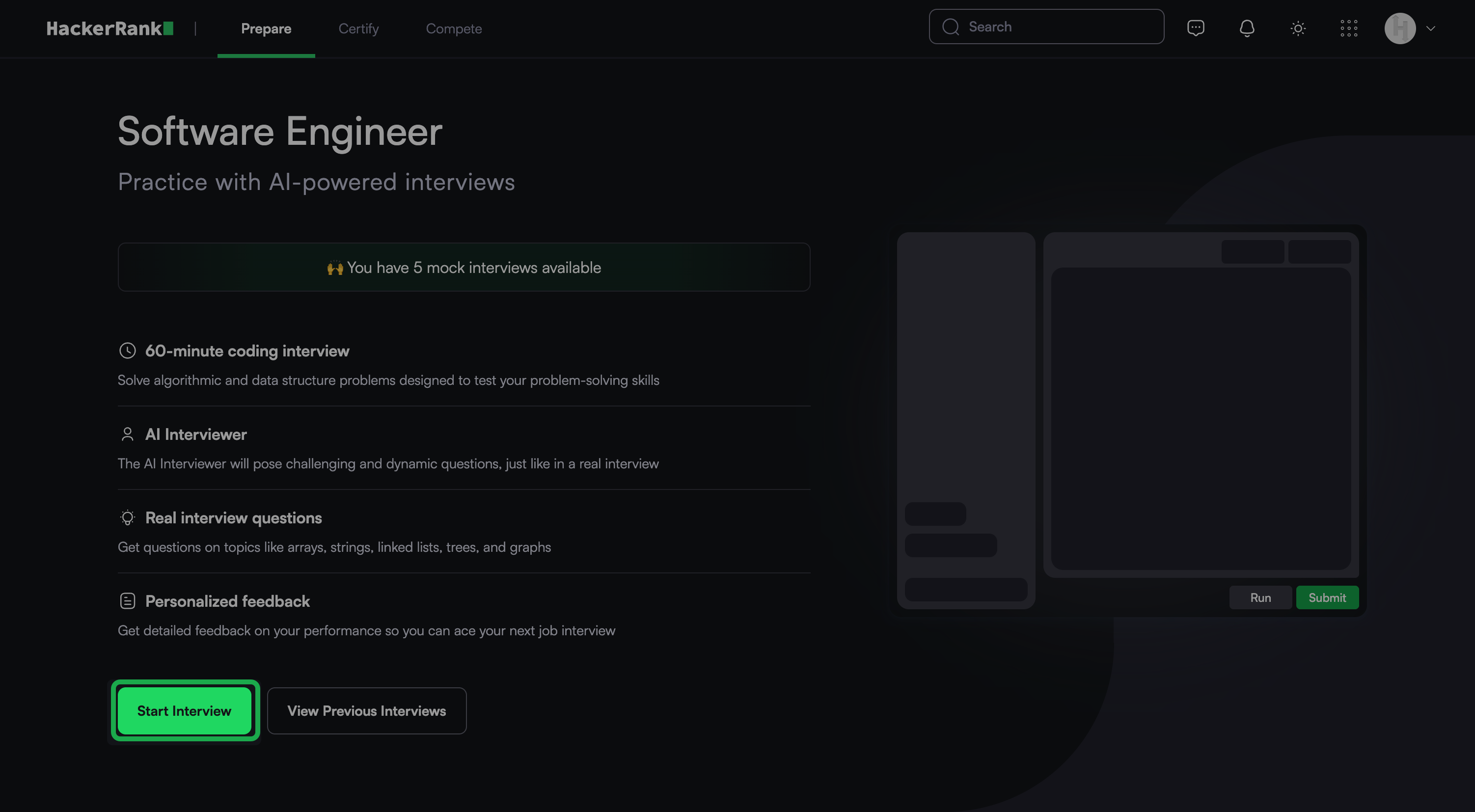
Click Start Interview.
Note: Check the banner to confirm available mock interview attempts. If needed, purchase additional credits. For more information, see 📄 Purchase Mock Interview Credits.
In the confirmation dialog, click Start Interview again.
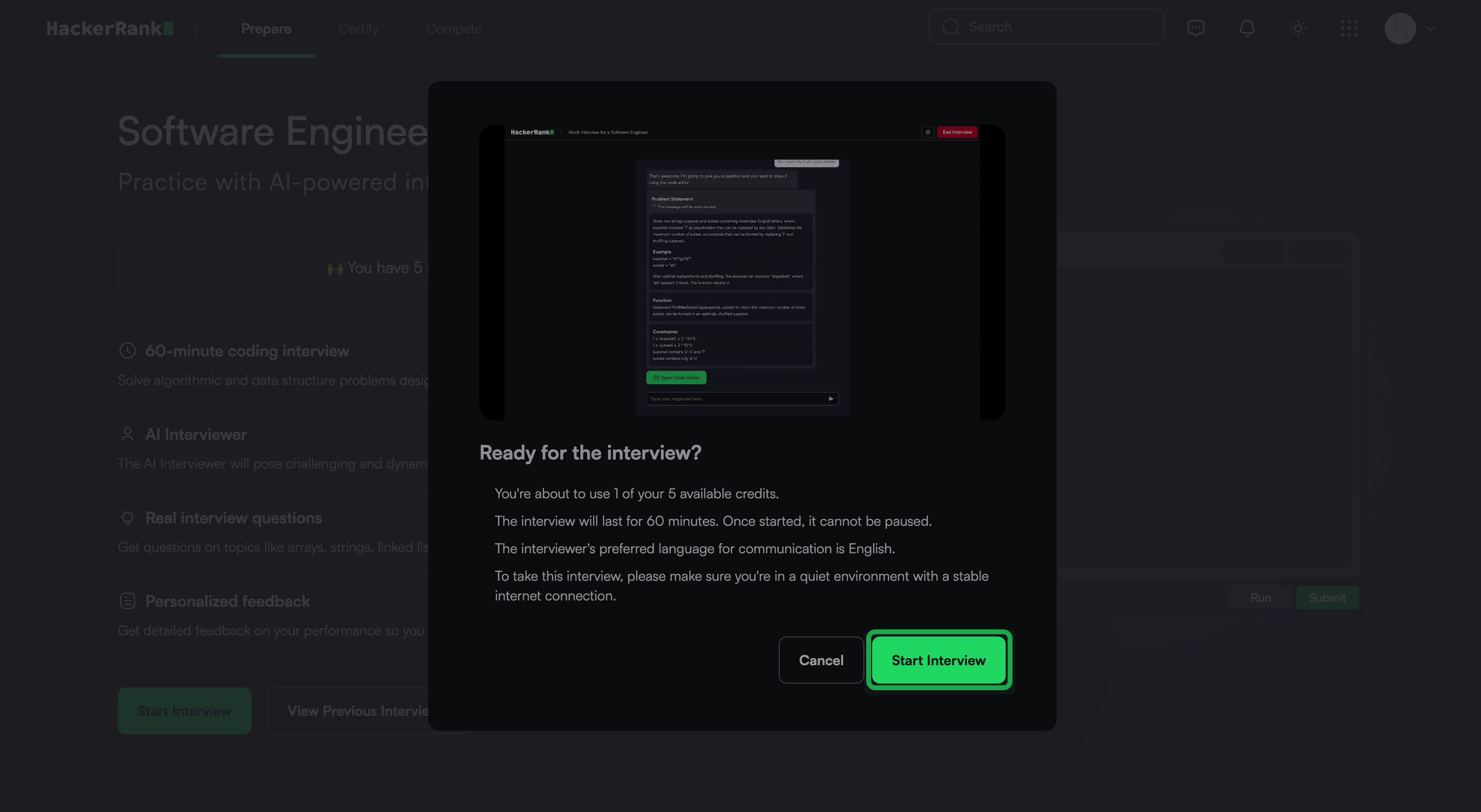
The system redirects you to the interview interface.
Interview experience
The AI interviewer guides you through the session in this sequence:
Asks introductory questions.
Presents a role-specific coding task.
Allows you to ask clarifying questions at any time.
Asks follow-up questions based on your solution and approach.
You can continue interacting with the AI throughout the session.
Interview interface and controls
The interview interface includes:
Center panel: Displays chat panel with the AI interviewer.
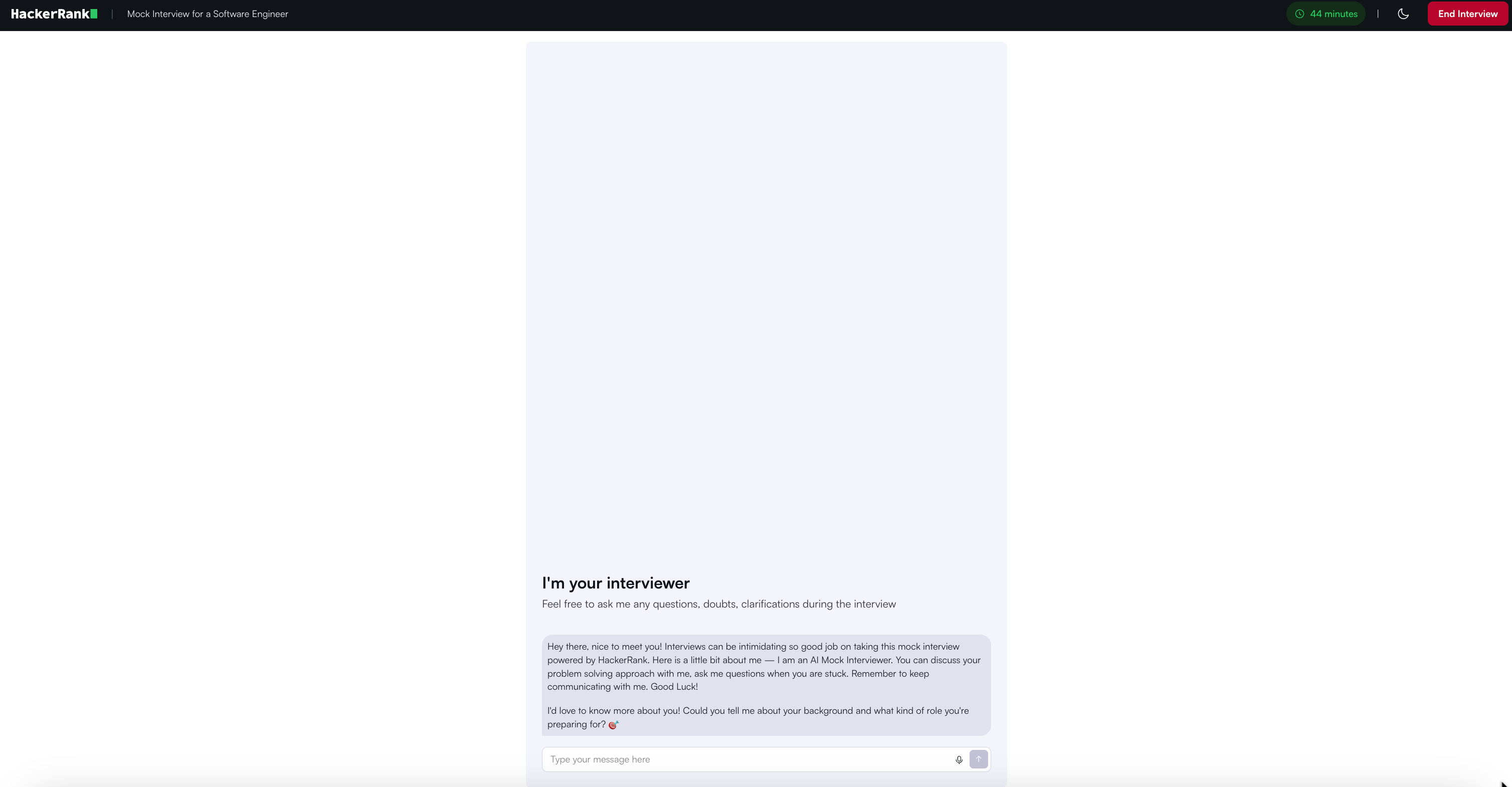
Top-right corner: Shows a countdown timer, theme toggle (light/dark mode), and the End Interview button.
You can respond using one of the following input methods:
Text input
Type your response in the input field.
Press Enter or click Send to submit.
Speech input
Click the microphone icon to start recording.
Click the icon again to stop recording.
Review the transcript and press Enter or click Send to submit.
Using code editor
To start coding, click Open Code Editor.
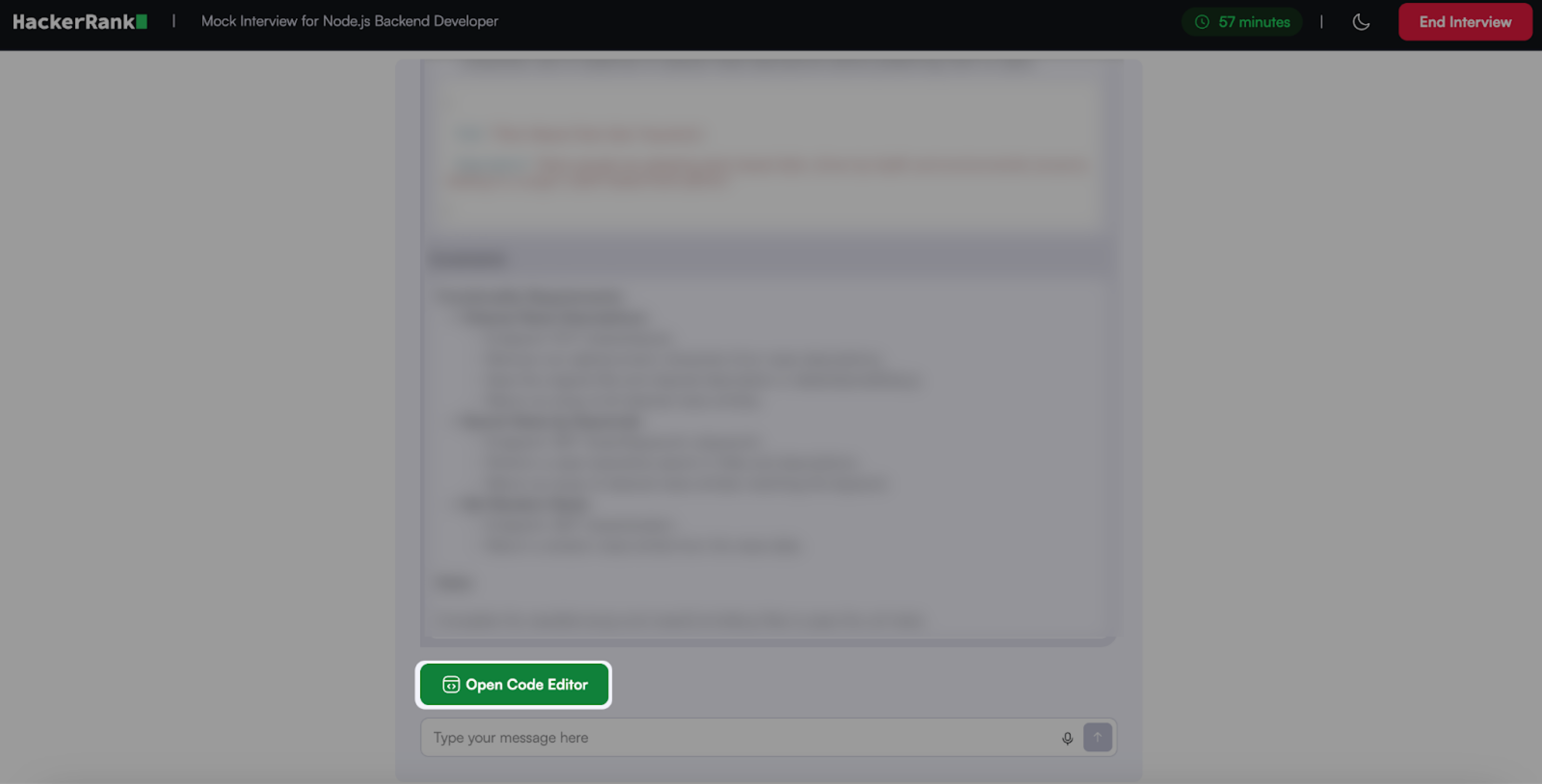
The editor layout varies based on the role you choose.
Software Engineer
The screen displays two panels:
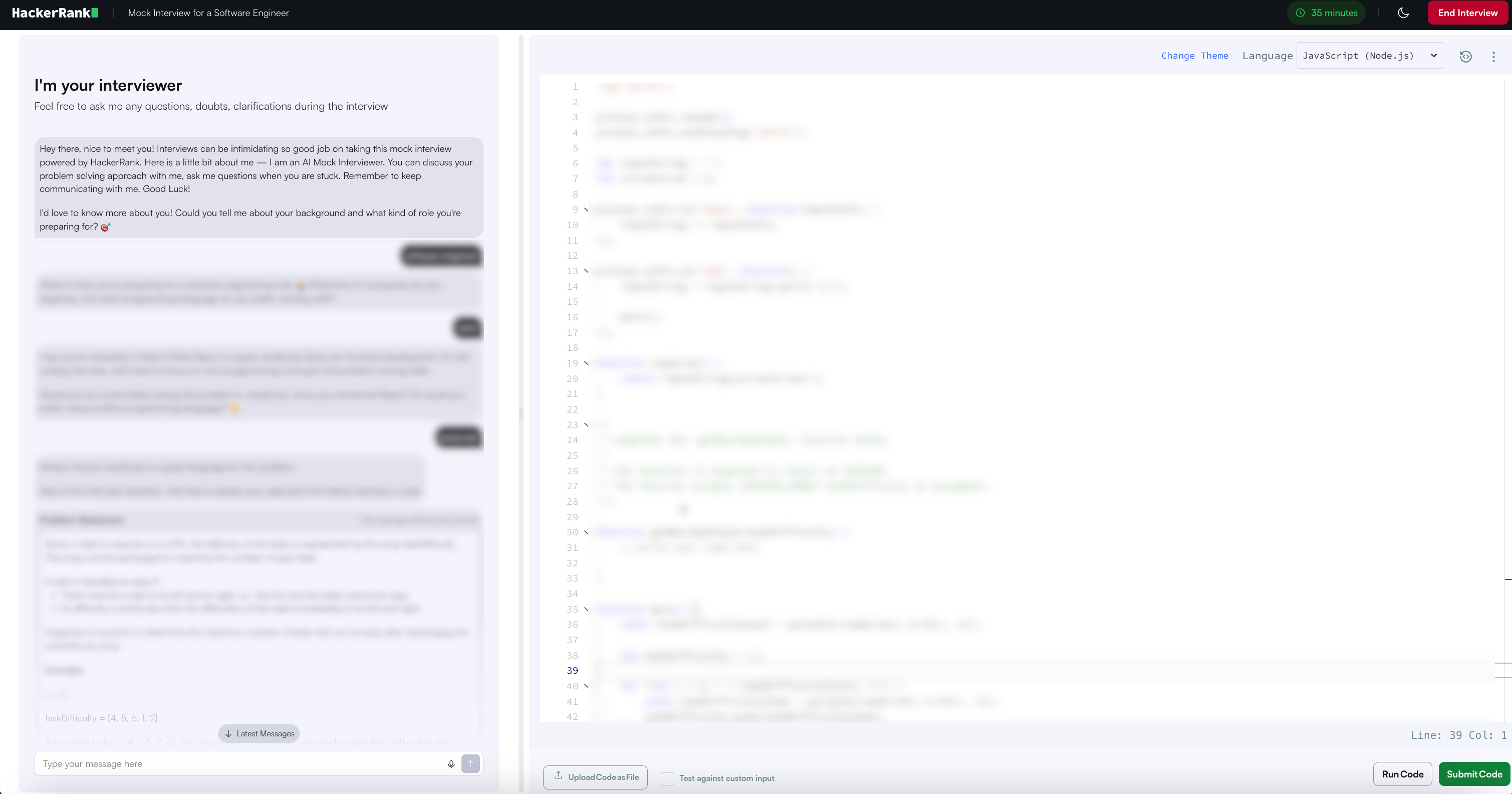
Left panel: Chat panel for interacting with the AI interviewer.
Right panel: VS Code–style editor to write and test your code.
You can adjust panel sizes to fit your preferences.
In the code editor, you can:
Choose a programming language from the Language dropdown (for example, Java or C++).

Change the editor theme (Light, Dark, or High Contrast).
Customize editor settings:
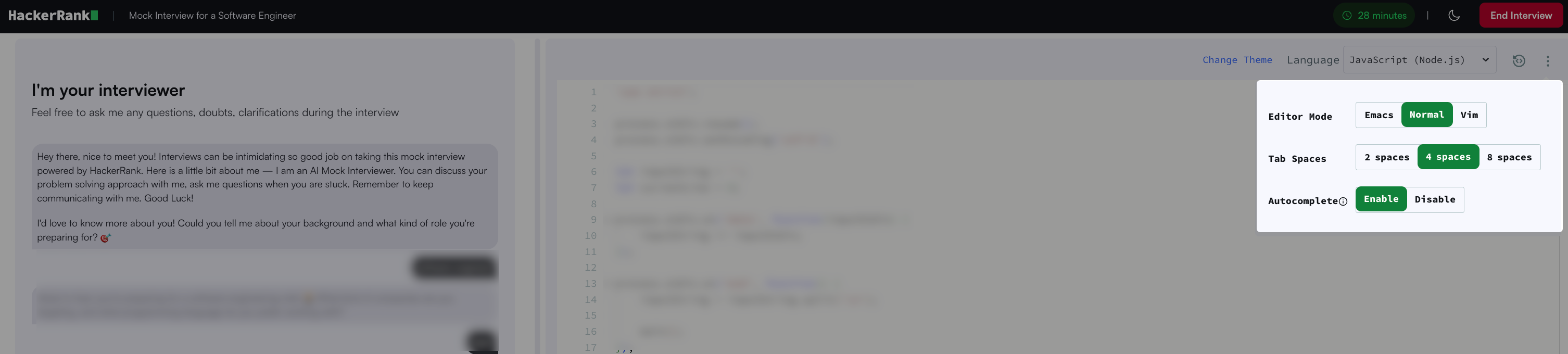
Editor mode (Normal, Vim, or Emacs)
Tab spacing (2, 4, or 8 spaces)
Autocomplete (enabled or disabled)
Note:
Click the reset button to revert your code to the original problem state.
Uploading a file will replace the existing code in your editor. A confirmation message appears before the change is applied.
Use Test against custom input to enter and run your own test data.
Front-end Developer
The screen displays three panels:
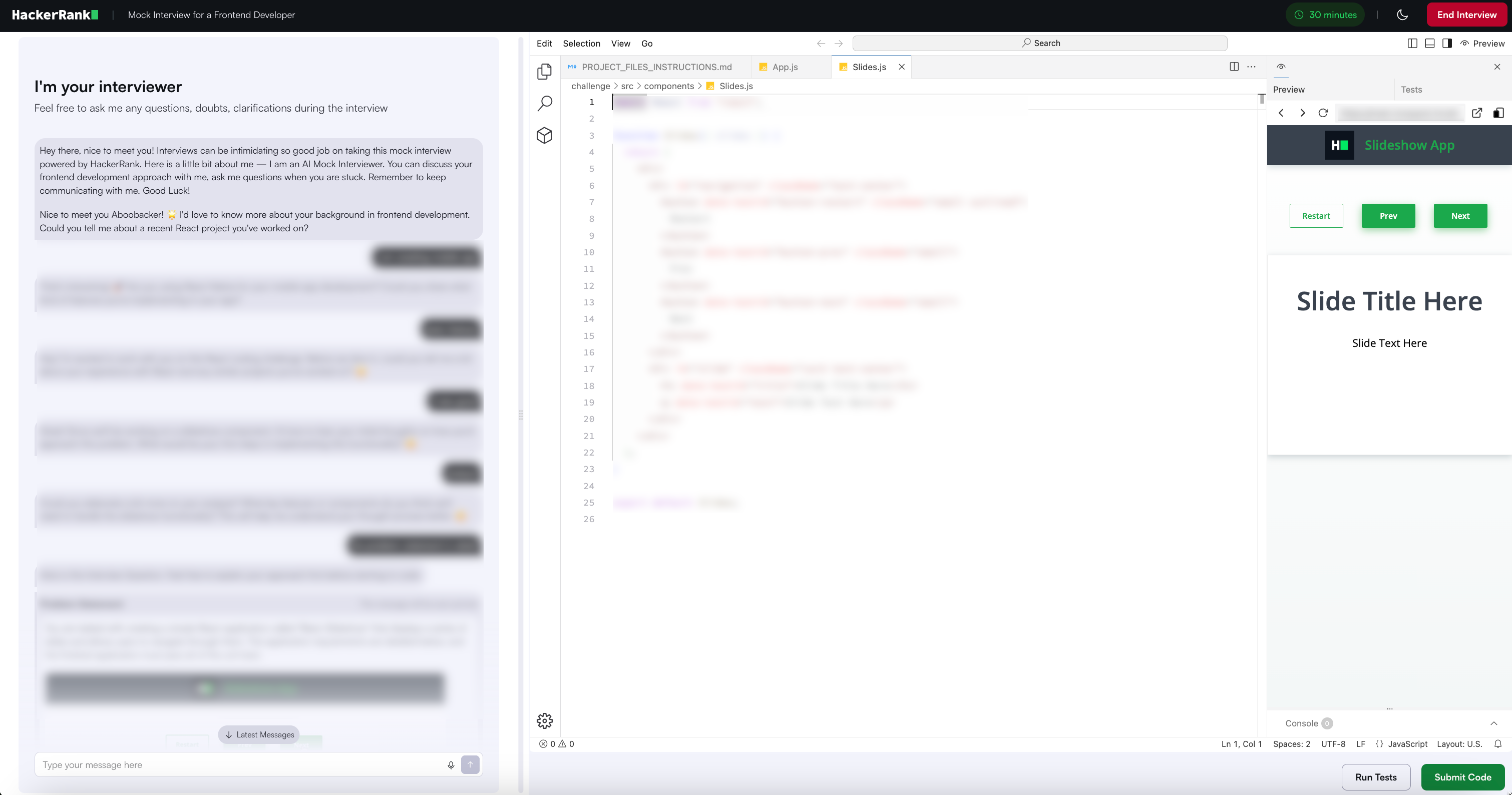
Left panel: Chat panel for interacting with the AI interviewer.
Center panel: VS Code–style editor for modifying files
Right panel: Live preview of your application.
You can adjust panel sizes to fit your preferences.
Back-end Developer
The screen displays three panels:
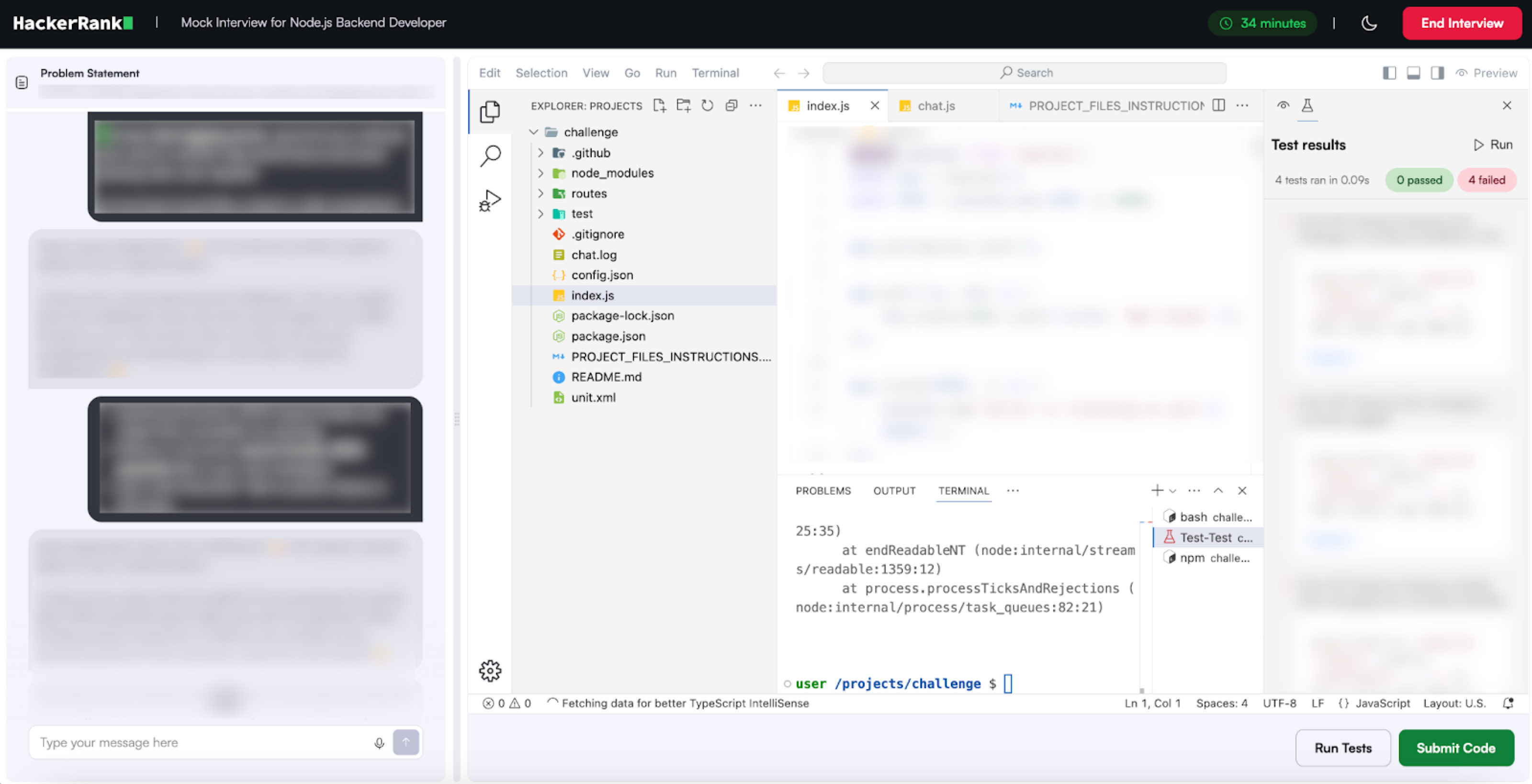
Left panel: Chat panel for interacting with the AI interviewer.
Center panel: VS Code–style editor for modifying files
Right panel: Live preview of your application.
You can adjust panel sizes to fit your preferences.
Testing and submitting code
After writing your solution:
Click Run Code to validate your code.

Review the test results in the preview panel on the right. If any test cases fail, the AI interviewer may prompt you to review specific parts of your code. It may also provide hints to help you troubleshoot.
Once all tests pass, click Submit Code. The AI interviewer may ask follow-up questions about your solution, your approach, or related problem-solving concepts to assess your understanding.
Ending an interview
The interview ends when:
The 60-minute timer expires
You click End Interview button
The AI interviewer ends the session after completing the interview
Feedback report
When the interview ends, the system replaces the code editor with a feedback screen. The feedback report evaluates:
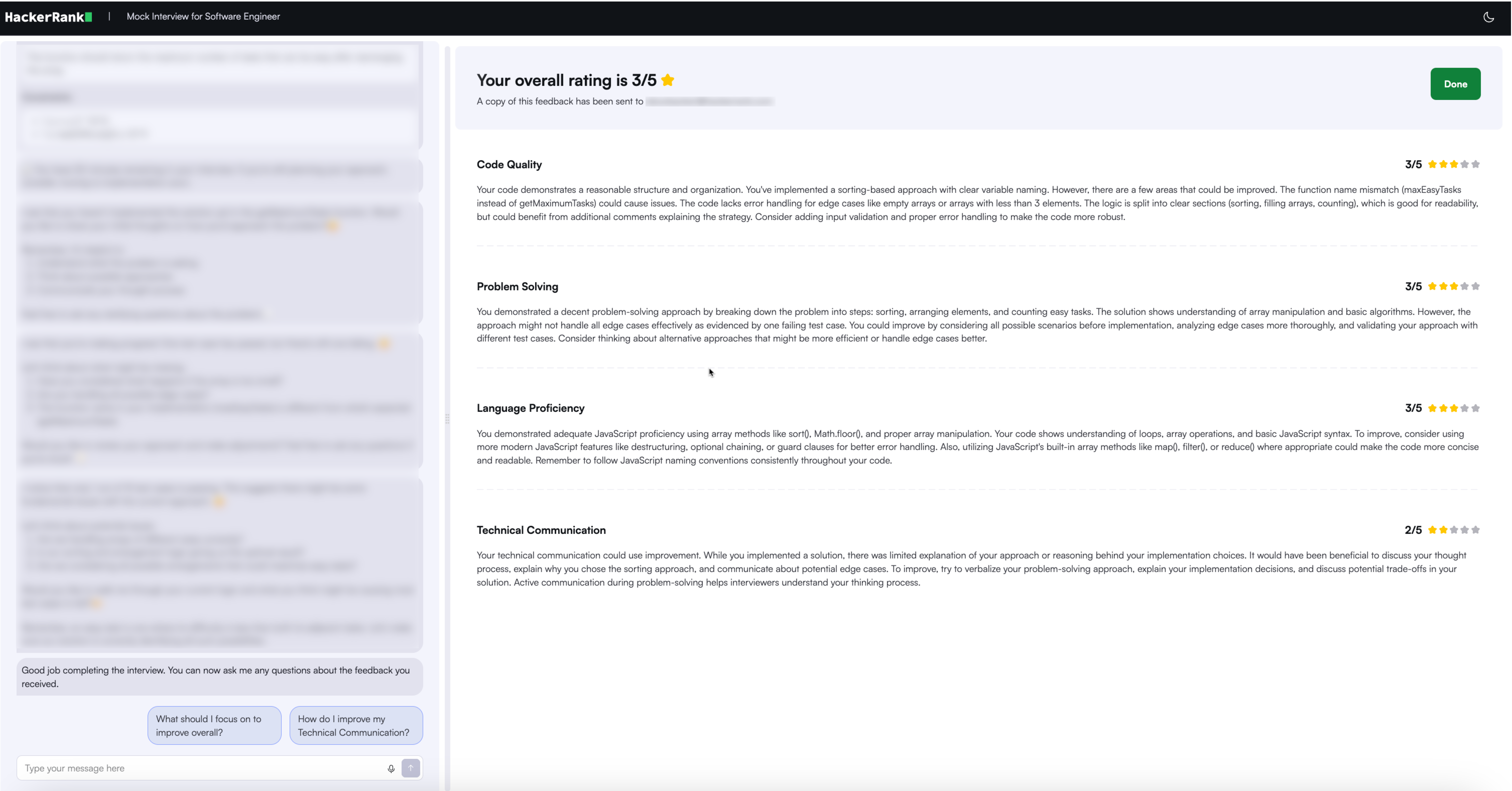
Code quality
Problem-solving skills
Technical communication
Language proficiency
You can use this feedback to identify areas for improvement. You can continue interacting with the AI interviewer for 15 minutes after the interview ends to:
Clarify feedback
Ask follow-up questions
Request improvement tips
After 15 minutes, the interaction closes automatically.
Note:
If you need to end the interview early:
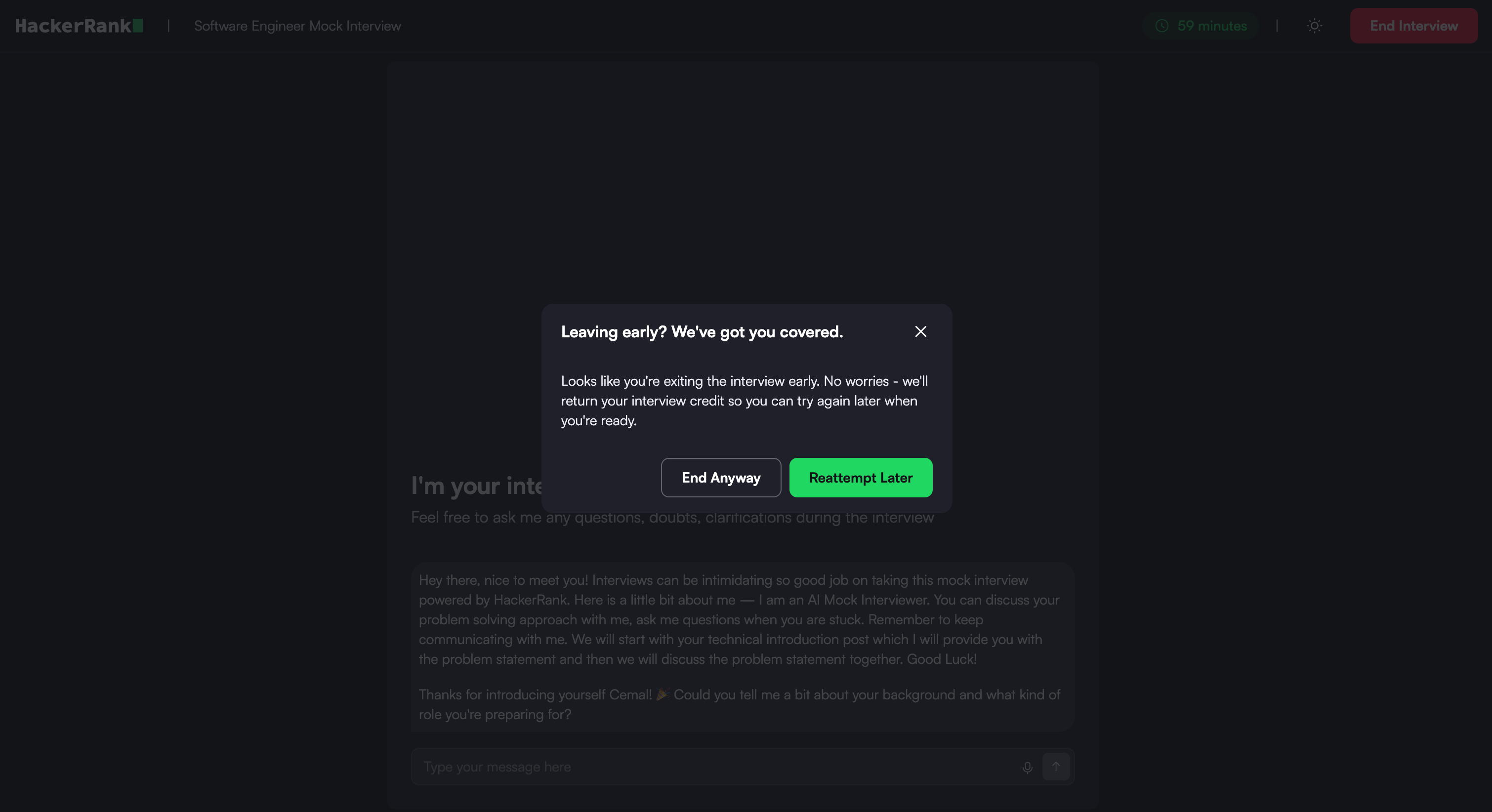
Click Reattempt Later to attempt the interview again later.
Click End Anyway to permanently end the session.
Viewing previous attempts
To view your previous Coding mock interviews:
Go to the Prepare tab.
Locate the Coding card under the AI-powered Mock Interviews section.
Click Take Interview.
Click View Previous Interviews.
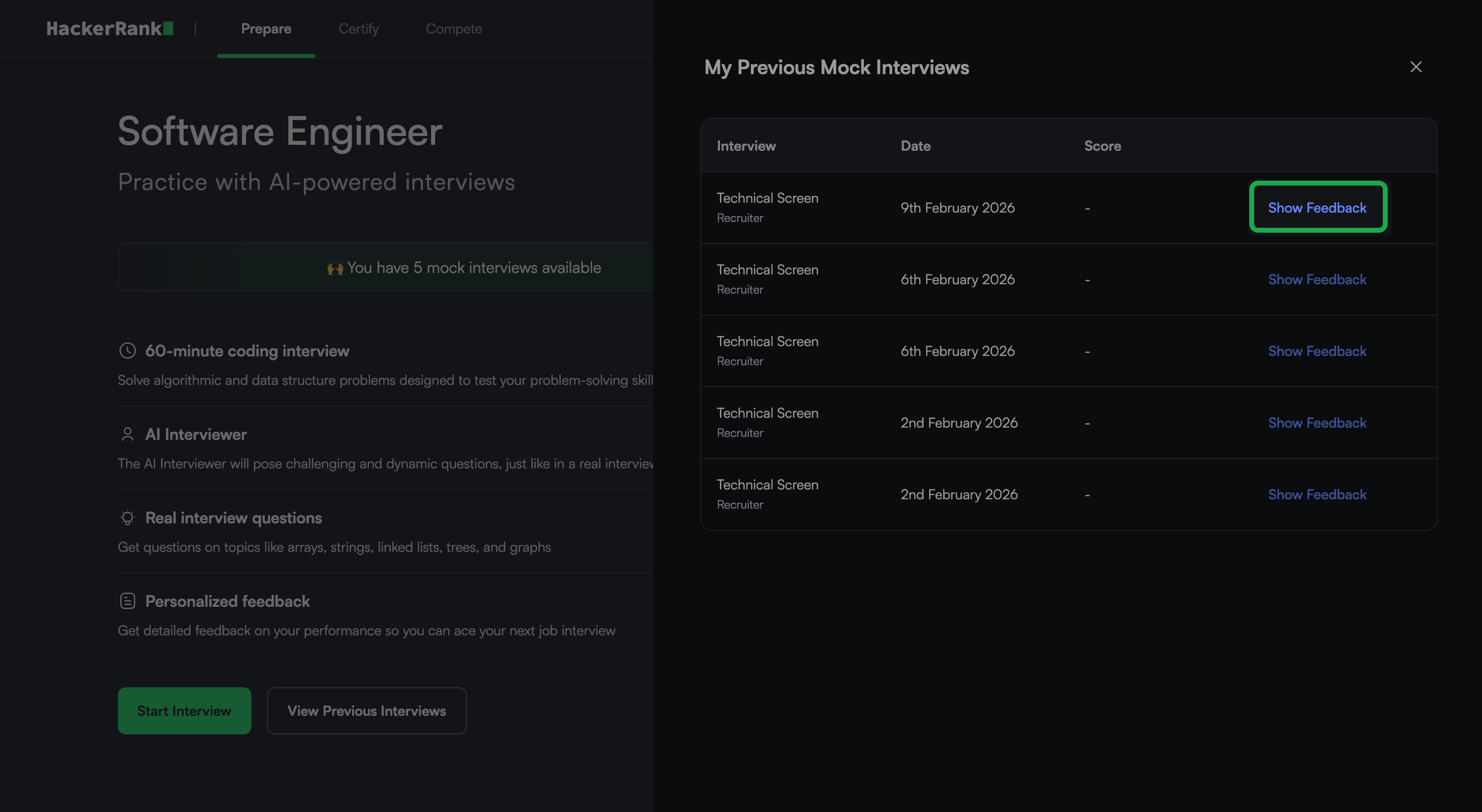
The My Previous Mock Interviews dialog displays a list of your previous mock interviews, including the date and score for each.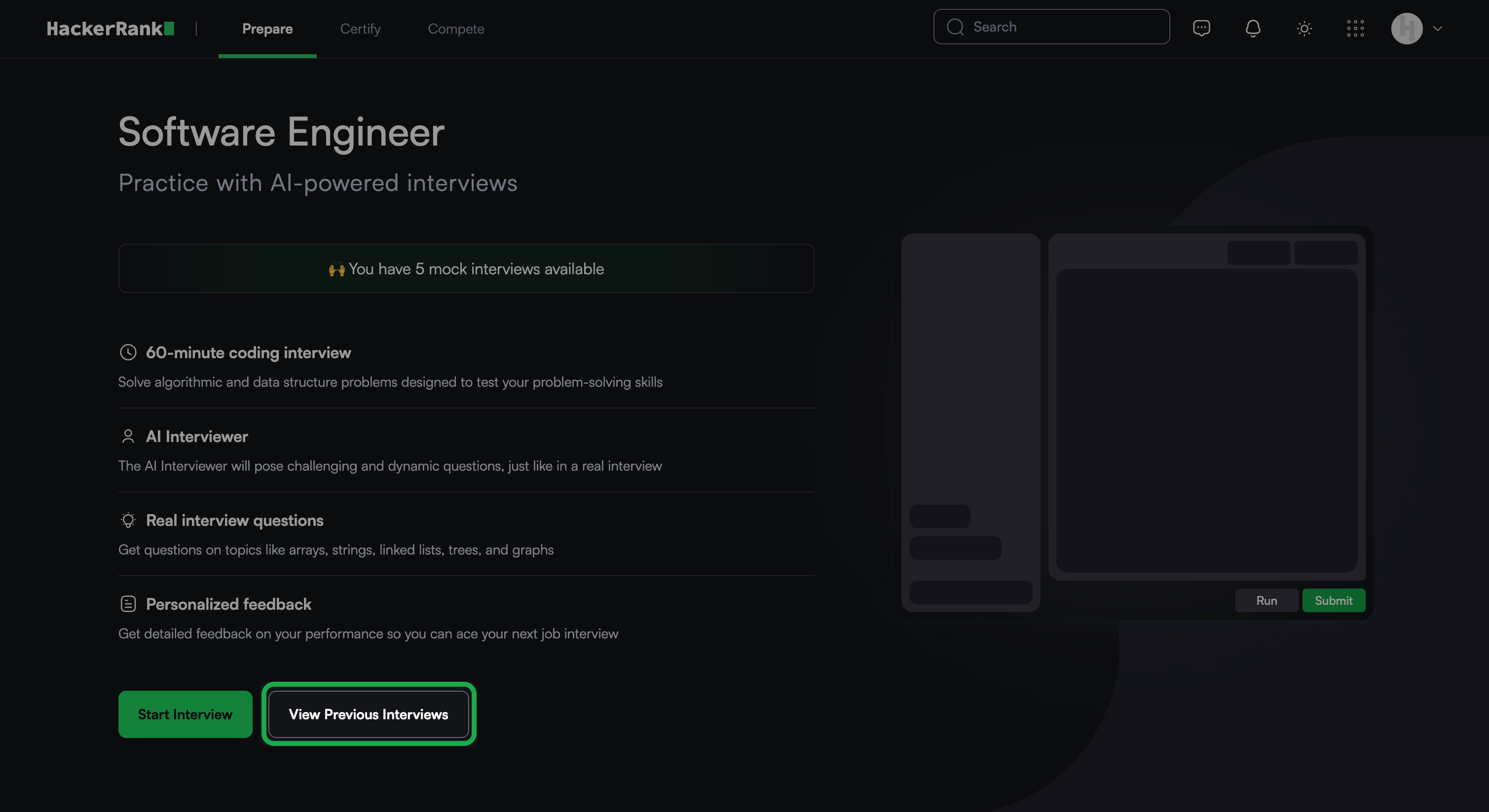
Click Show Feedback next to an attempt to view the feedback report.
Best practices
Monitor the countdown timer. It turns red as time runs out.
Ask the interviewer clarifying questions if something is unclear.
Add comments to your code to improve readability and make debugging easier.
Stay calm and approach the problem one step at a time.