System Design Mock Interview
Last updated: April 22, 2026
The System Design Mock Interview is an AI-powered simulation of a real-world system design interview. It provides a timed environment to help you improve your design thinking skills and prepare for real interviews.
Prerequisites
Before you begin, ensure you have the following:
Stable internet connection
Working microphone
Quiet, distraction-free environment
Taking System Design mock interview
To take the System Design Interview:
Log in to HackerRank Community using your credentials.
Go to the Prepare tab.
Locate the System Design card under the AI-powered Mock Interviews section.
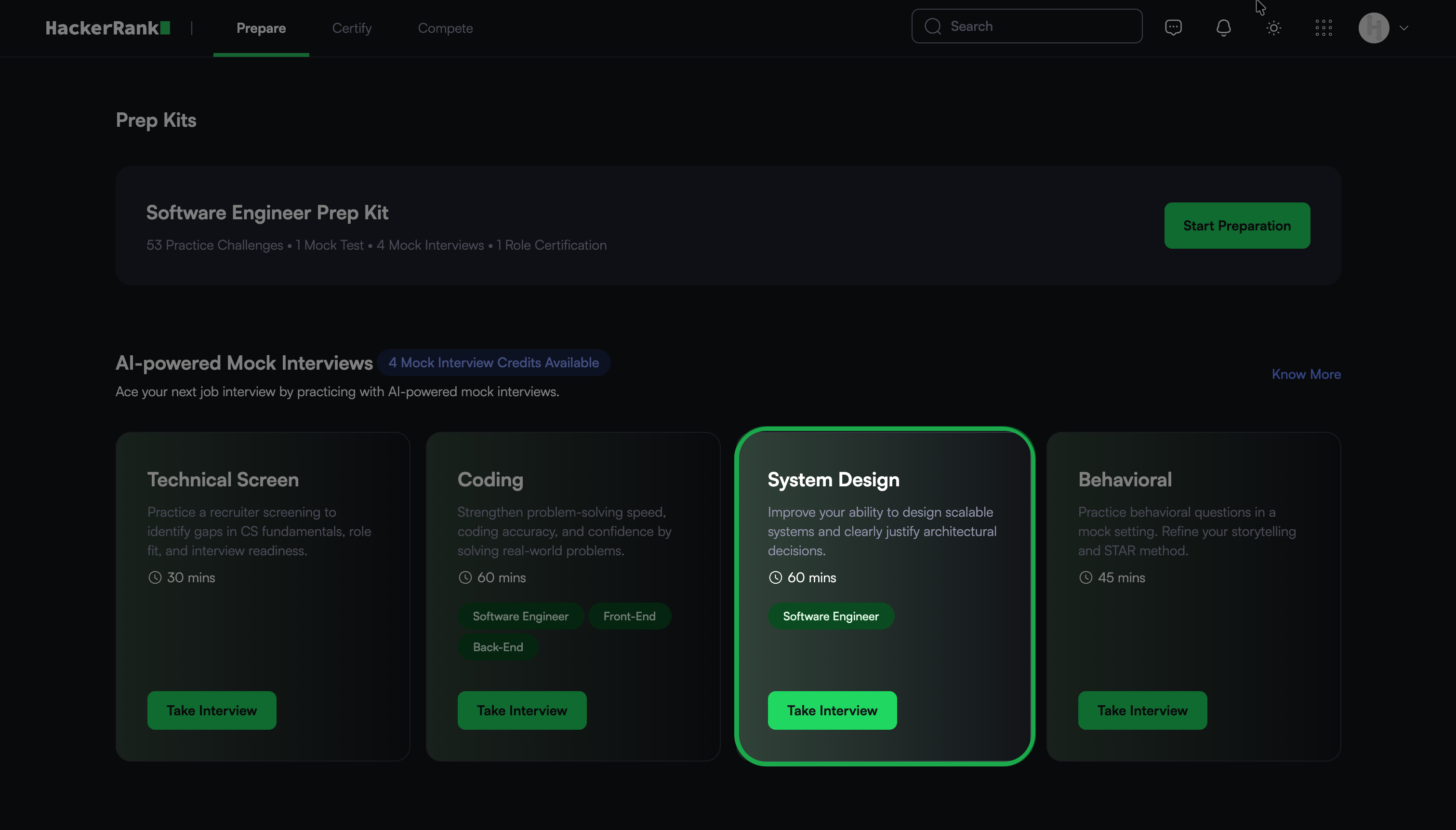
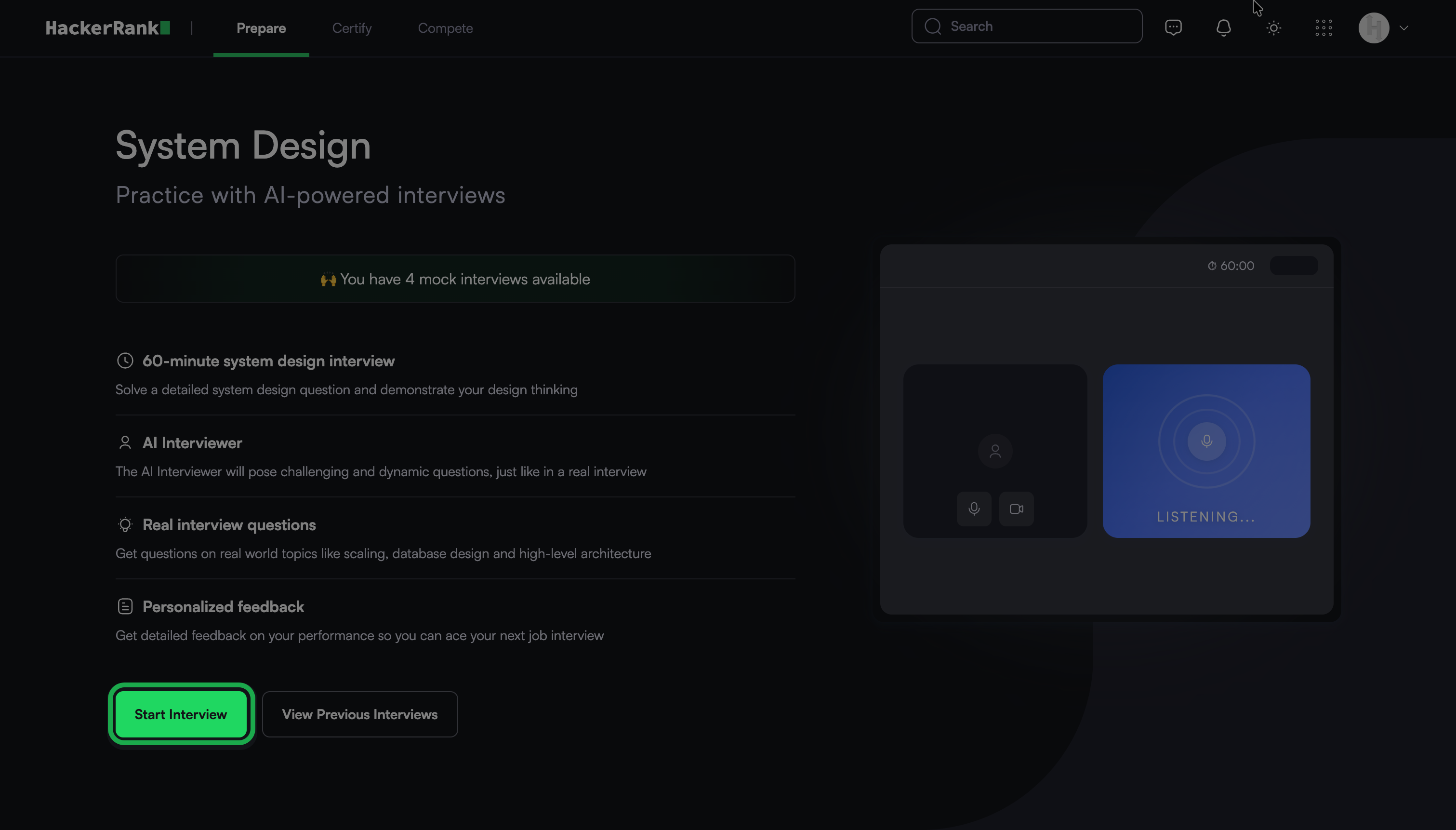
Click Take Interview.
Click Start Interview.
Note: Check the banner to confirm available mock interview attempts. If needed, purchase additional credits. For more information, refer to the 📄 Purchase Mock Interview Credits.
Allow the browser to access your camera and microphone when prompted.
In the Audio & Camera Settings, review and adjust your microphone, speaker, and camera.
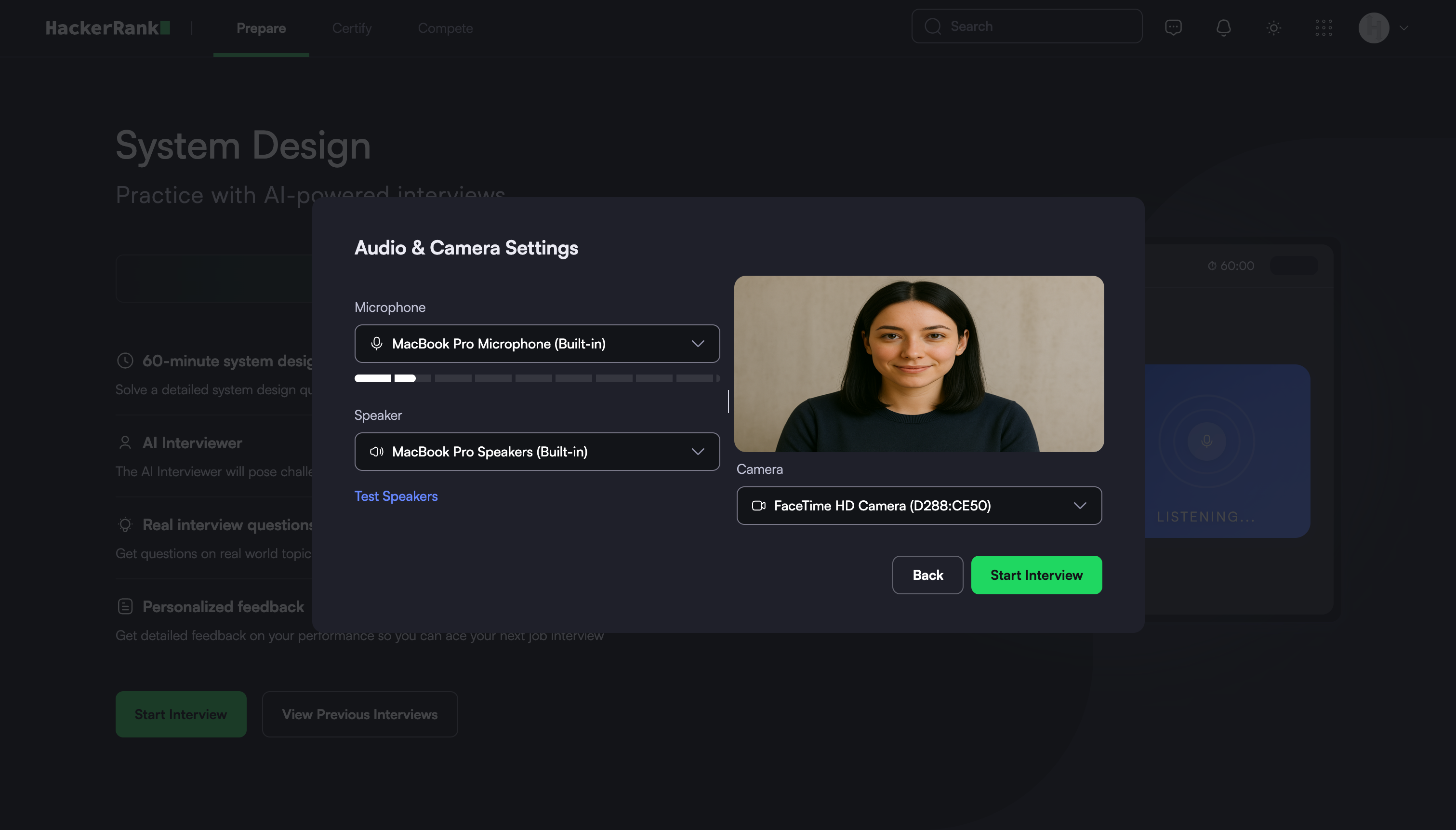
Note: Select Test Speakers to verify your audio.
Click Start Interview. The system redirects you to the interview interface.
Interview experience
At the start of the interview, the AI Interviewer:
Introduces the interview
Explains the interview flow
Describes the topics it will cover
Answers any questions before the interview begins
During the interview, the AI Interviewer:
Asks questions related to system design topics
Asks follow-up questions based on your responses
Explores topics in more depth when needed
Maintains a natural and interactive conversation
You can explain your design approach step by step and use the whiteboard to visually present your system. For more information, see Using Whiteboard.
You can view the remaining interview time in the upper-right corner of the screen.
Interview controls
During the interview, you can use the following controls:
Microphone: Mute or unmute your microphone using the microphone icon.
Self-view: Show or hide your video using the video icon.
Transcript: Show or hide the interview transcript
Using Whiteboard
You can use the Whiteboard to communicate your system design during the mock interview.
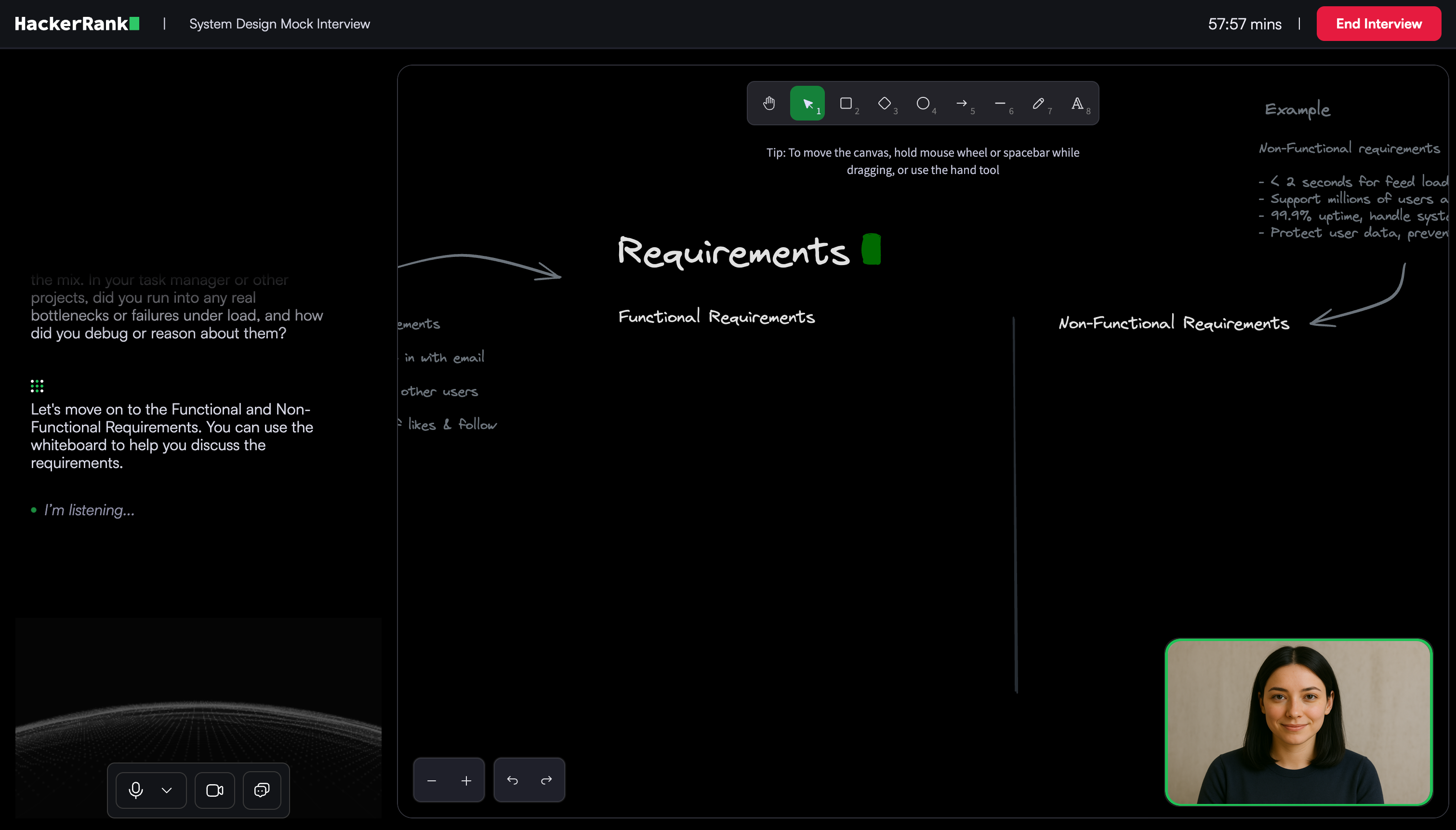
The Whiteboard includes the following sections:
Functional and Non-Functional Requirements: Capture system behavior and constraints
API Routes: Outline how users or services interact with the system
Database Schema: Represent data entities and relationships
High-Level Design: Show the overall system architecture
These sections help you organize your design. Use the toolbar to build and present your solution. For more information, see Whiteboard components and tools.
Whiteboard components and tools
The virtual whiteboard includes the following components and tools.
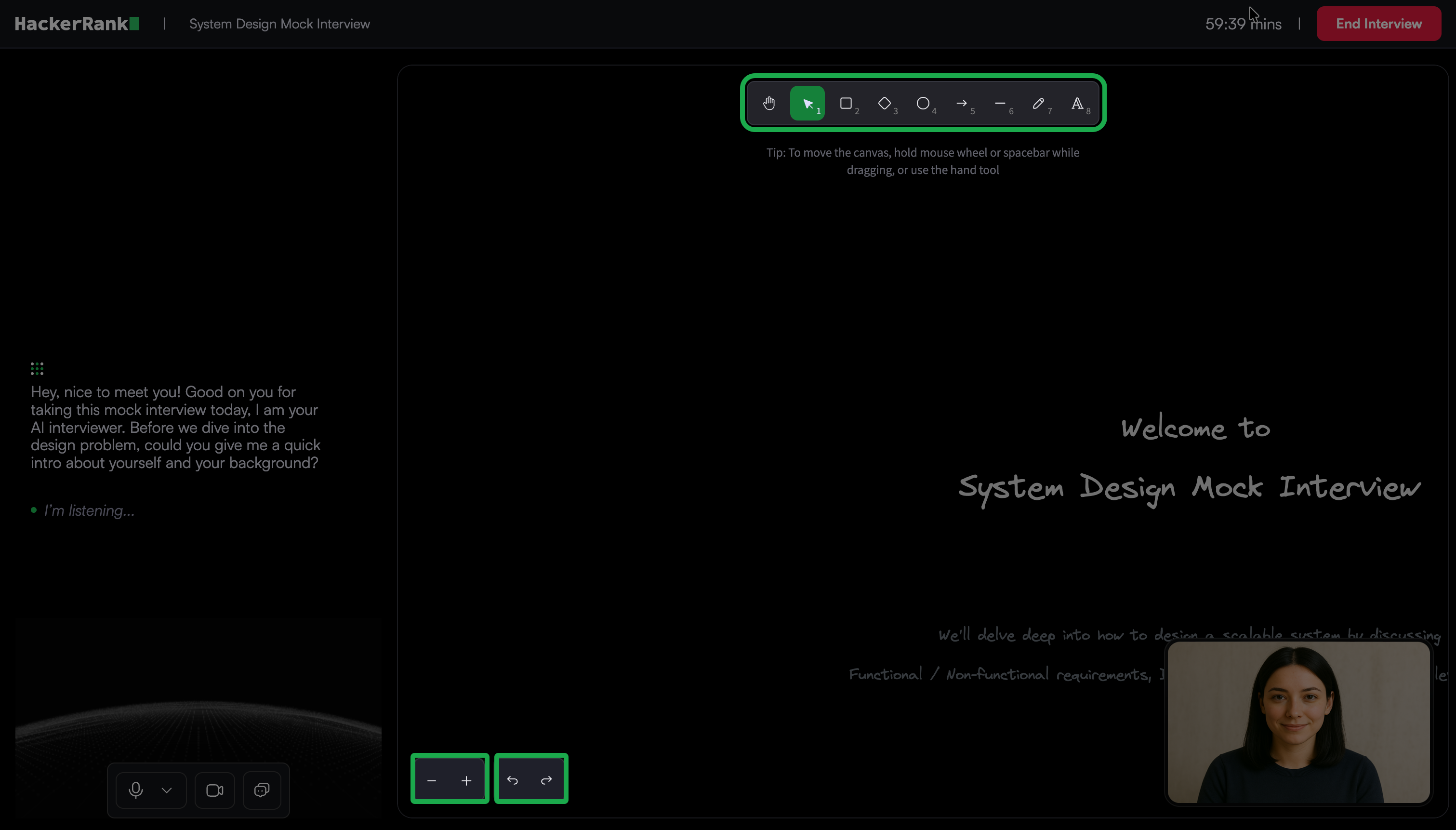
Canvas controls
Sketch and annotate without space limitations.
Scroll through the canvas to continue drawing seamlessly.
Use the + and – icons in the bottom-left corner to zoom in and out.
Use the arrows to undo and redo your designs
Drawing tools: The toolbar at the top of the whiteboard includes:
Selection tool: Select and move shapes or drawings. Drag handles around shapes to resize selected shapes. Press the Delete key on your keyboard to remove selected elements.
Shapes library: Insert common shapes such as squares, diamonds, and circles.
Arrow tool: Add directional arrows to diagrams.
Line tool: Draw straight lines for connections or boundaries.
Pen tool: Draw freehand sketches.
Text tool (A): Add labels, notes, or annotations.
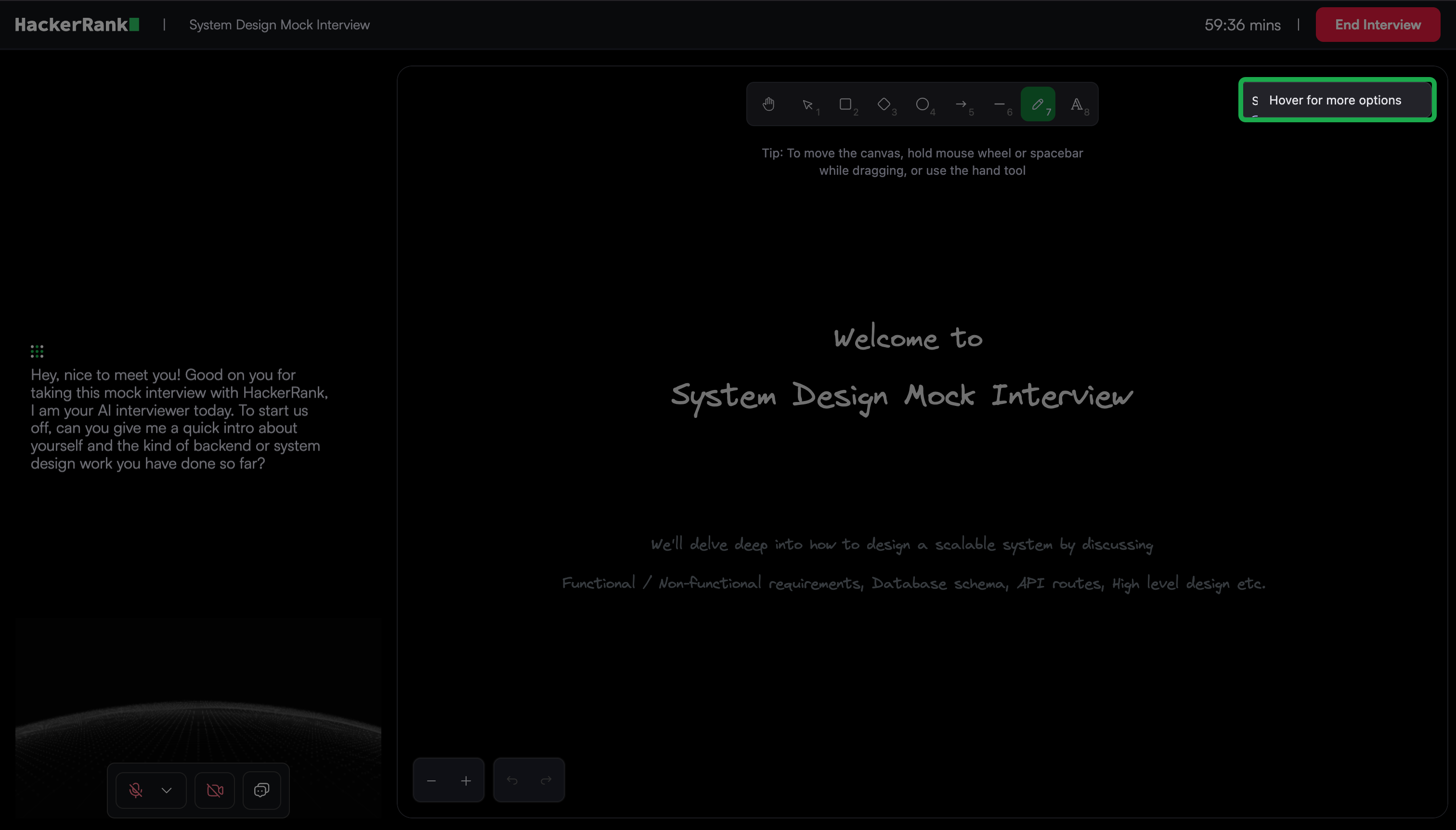
Note: When you select the Shapes or Text tool, use Hover for more options on the right side of the canvas to access additional options, such as stroke, font size, alignment, opacity, and layers.
Ending an Interview
When the interview concludes, the AI interviewer confirms that you are ready to end the session. The AI interviewer then ends the interview.
Alternatively, you can end the interview manually.
To end the interview manually:
Click End interview in the upper-right corner of the interview screen.
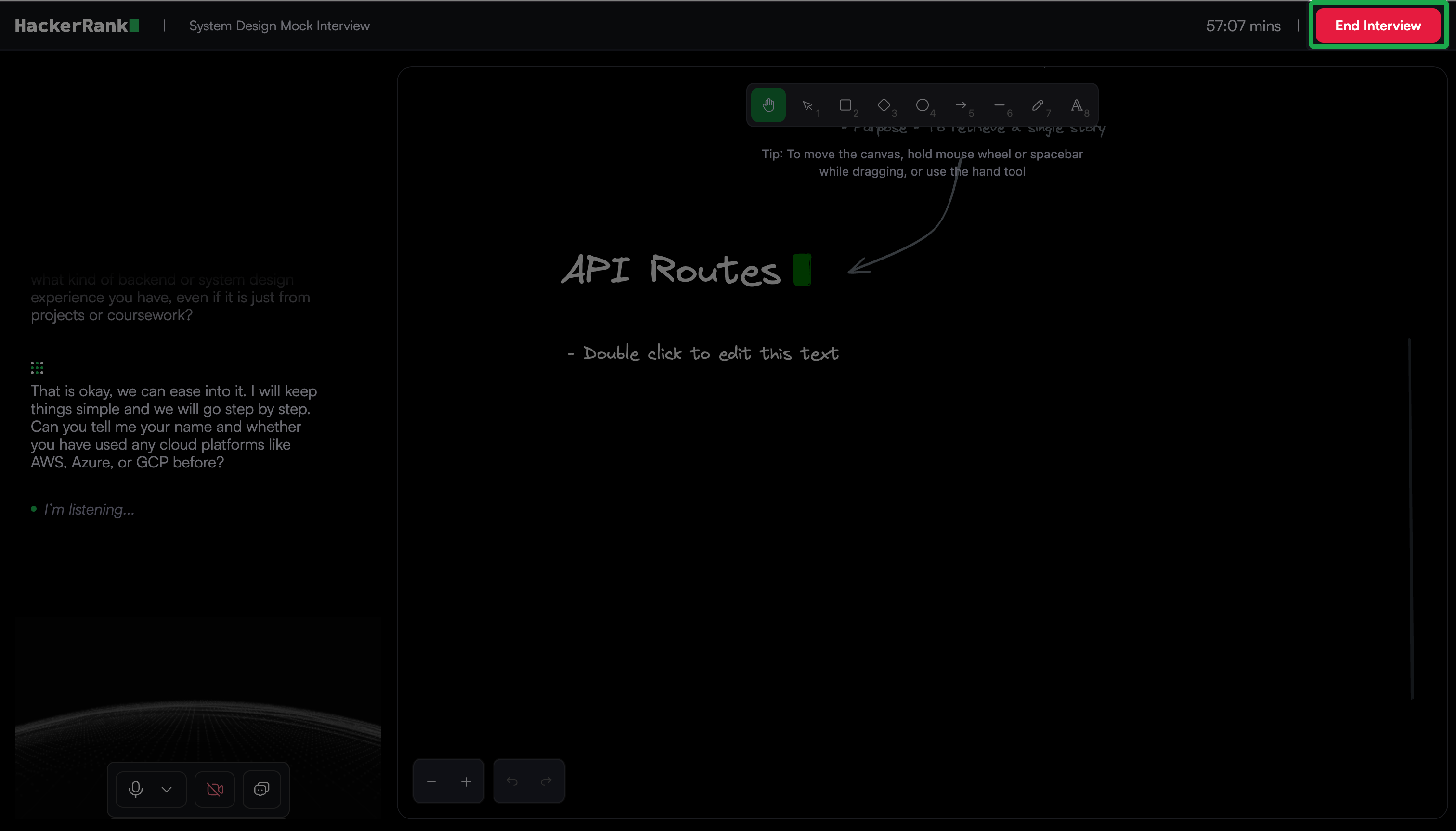
In the confirmation dialog, click End.
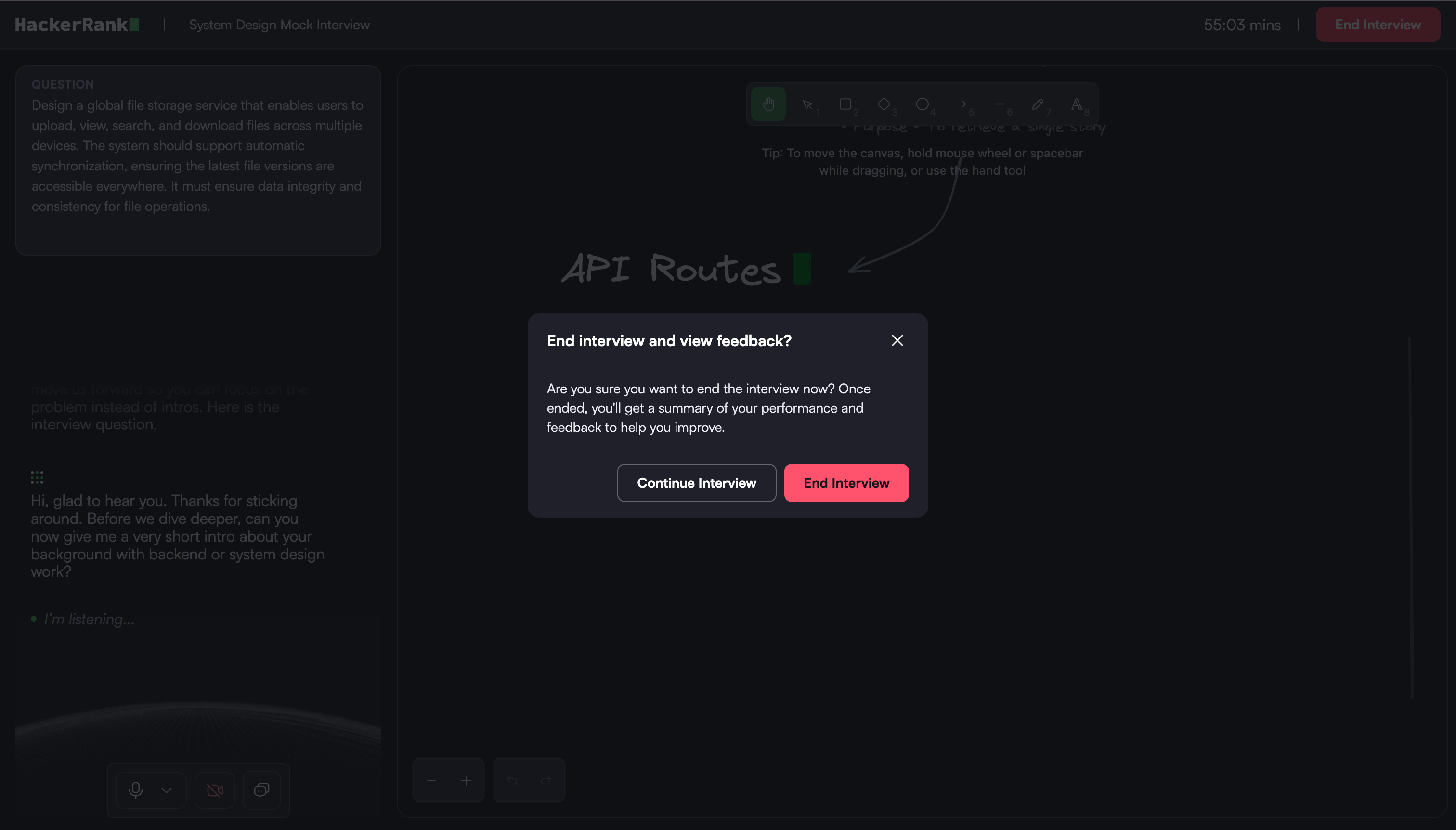
The system redirects you to the feedback report page.
Feedback report
After you complete the interview, the system generates a feedback report.
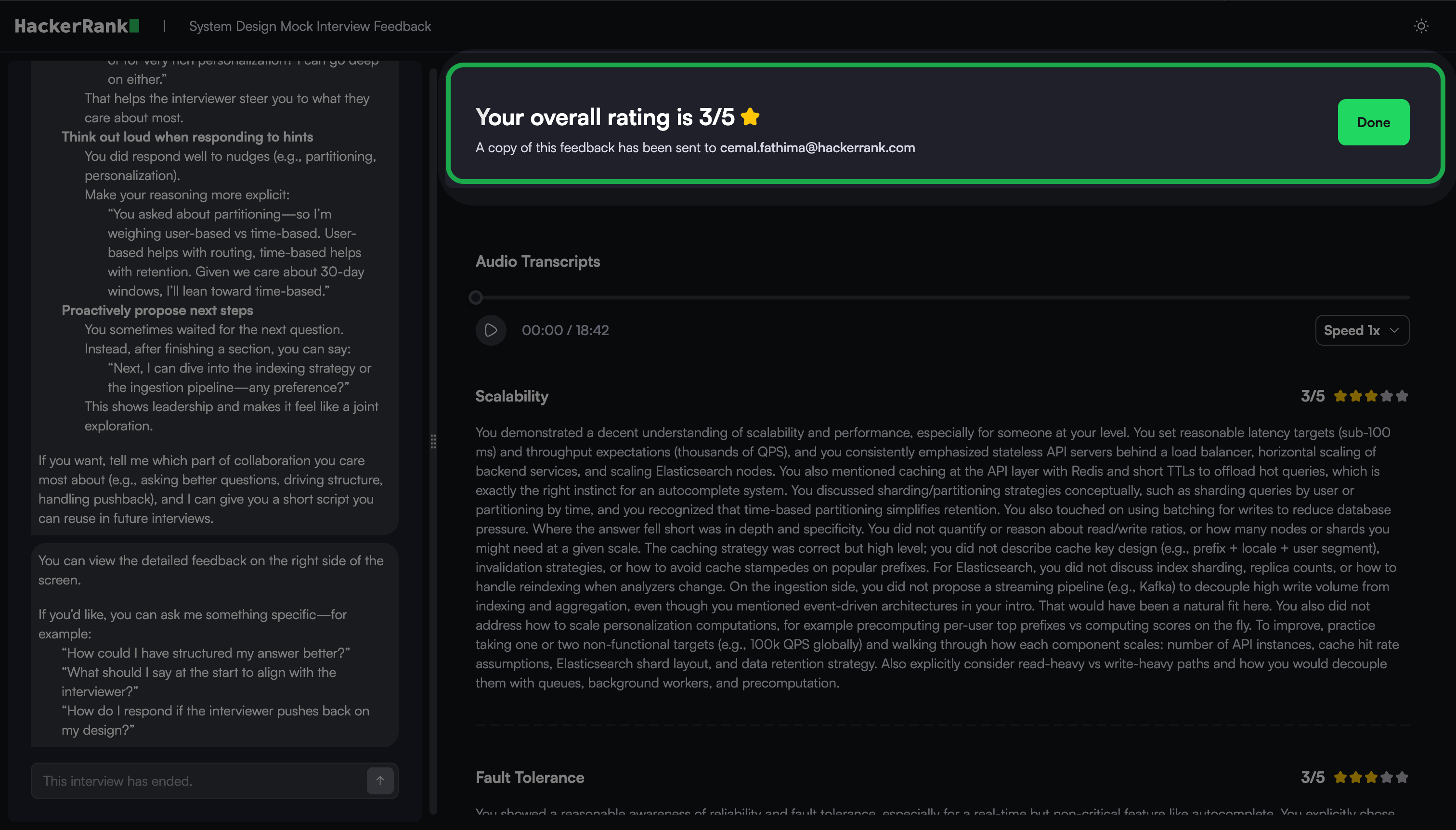
The report summarizes your AI interview and organizes evidence and feedback so you can quickly evaluate your performance.
You can use the report to review recommendations, interview responses, and section-level feedback in one place.
Feedback report components
The report includes the following components:
Overall Rating: The report assigns an overall rating on a 5-point scale to summarize your performance across all interview sections.
Audio Transcripts: The report includes a full interview recording that lets you:
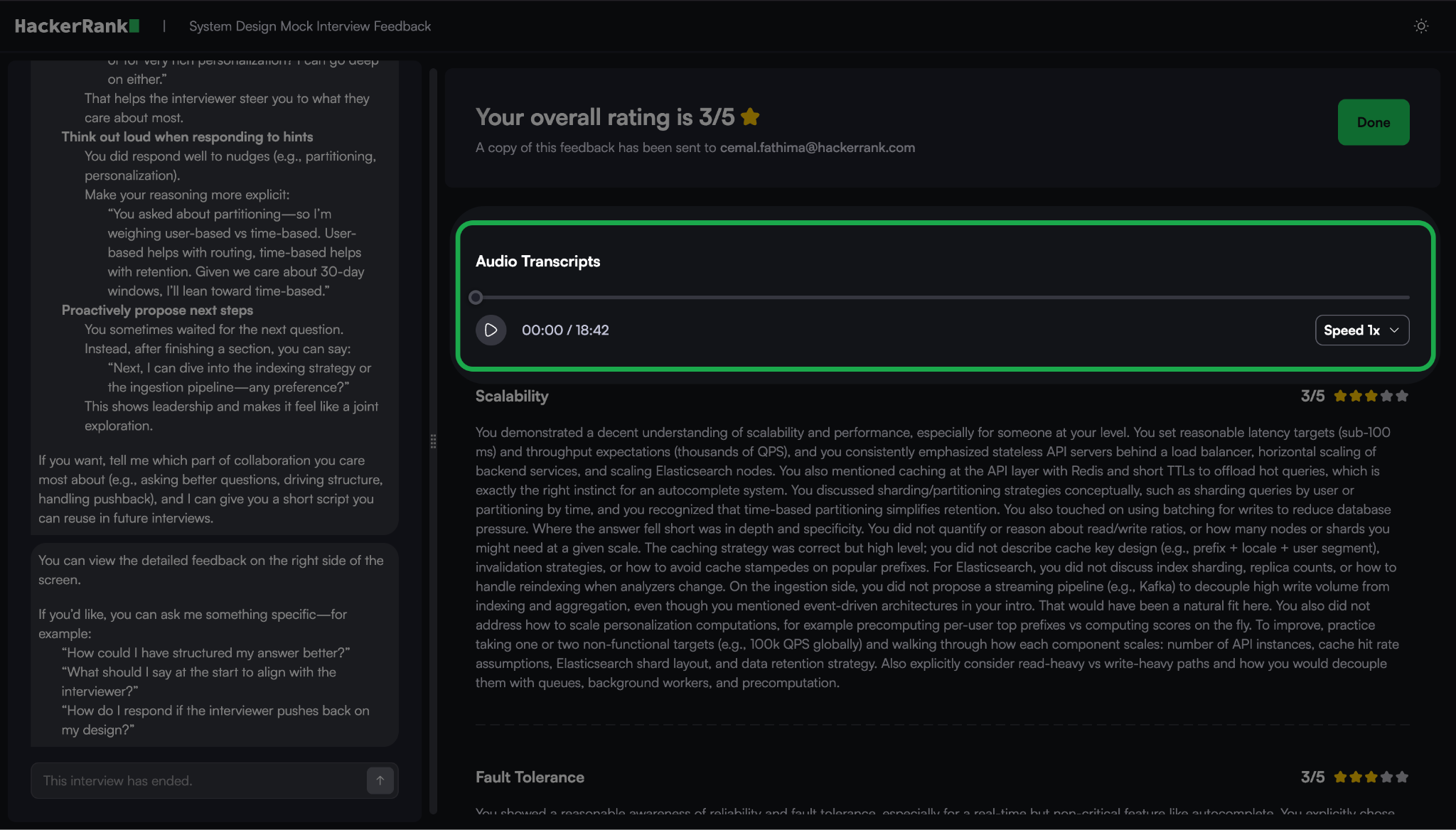
Play, pause, and scrub the timeline
Adjust playback speed
Chat Transcripts: The full interview chat transcript appears in the left pane.
Note: You can continue interacting with the AI interviewer for 15 minutes after the interview ends. You can:
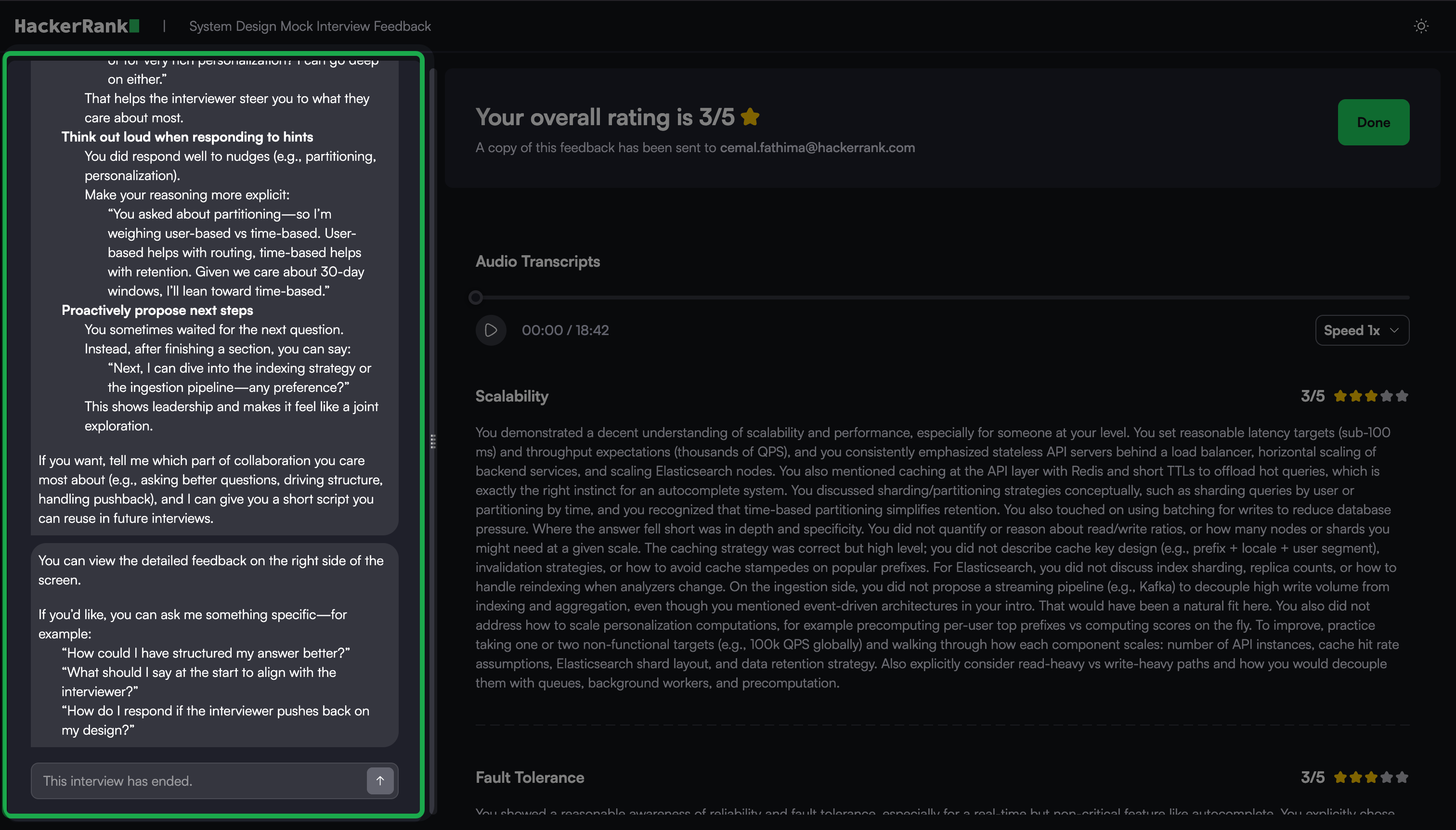
Clarify feedback
Ask follow-up questions
Request improvement tips
After 15 minutes, the interaction closes automatically.
Section-based feedback: The report organizes feedback by interview section.
Each section includes: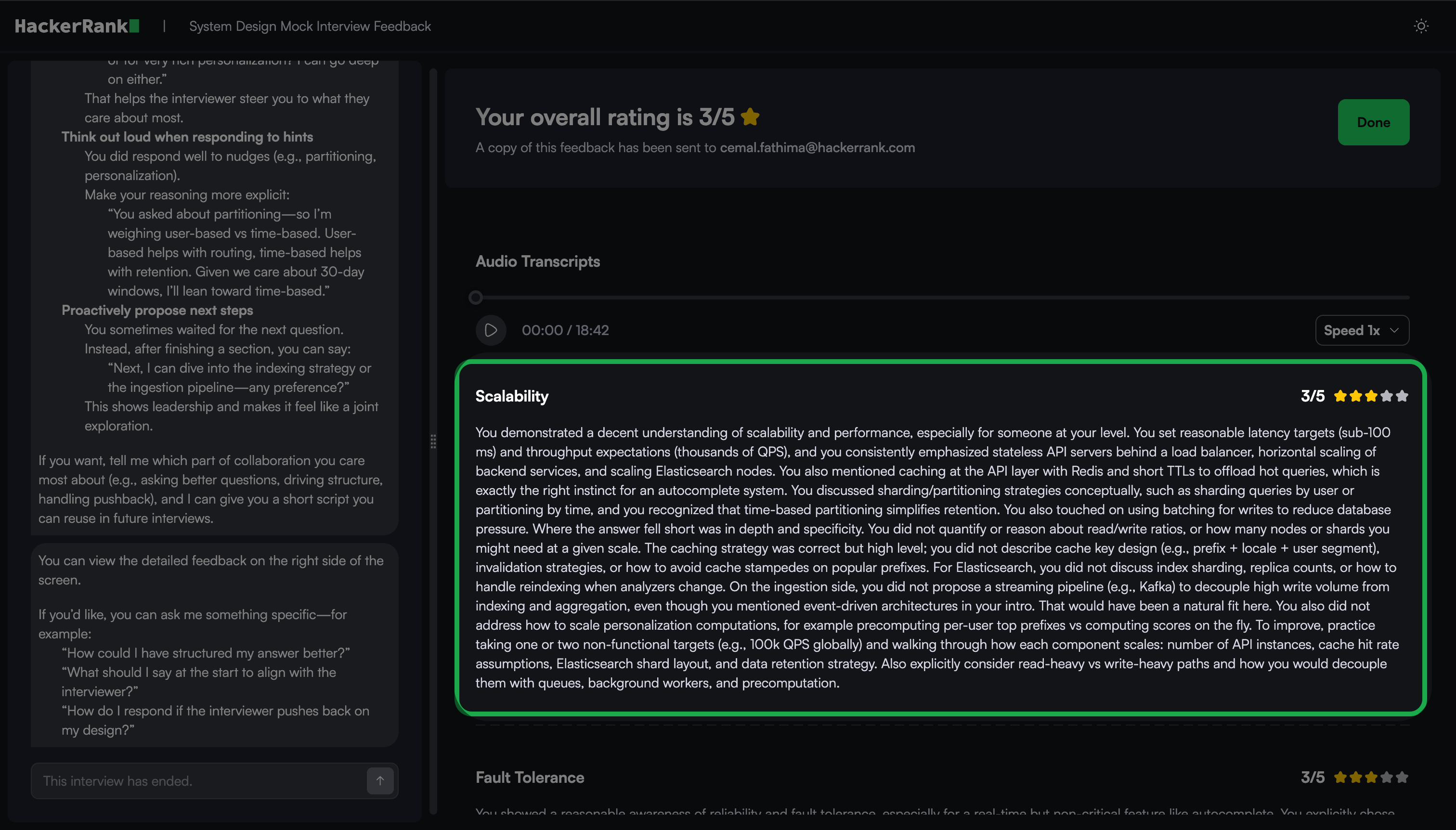
A rating on a 5-point scale
A short narrative that describes your performance in that area
Use the section-based feedback to understand your strengths and gaps in detail.
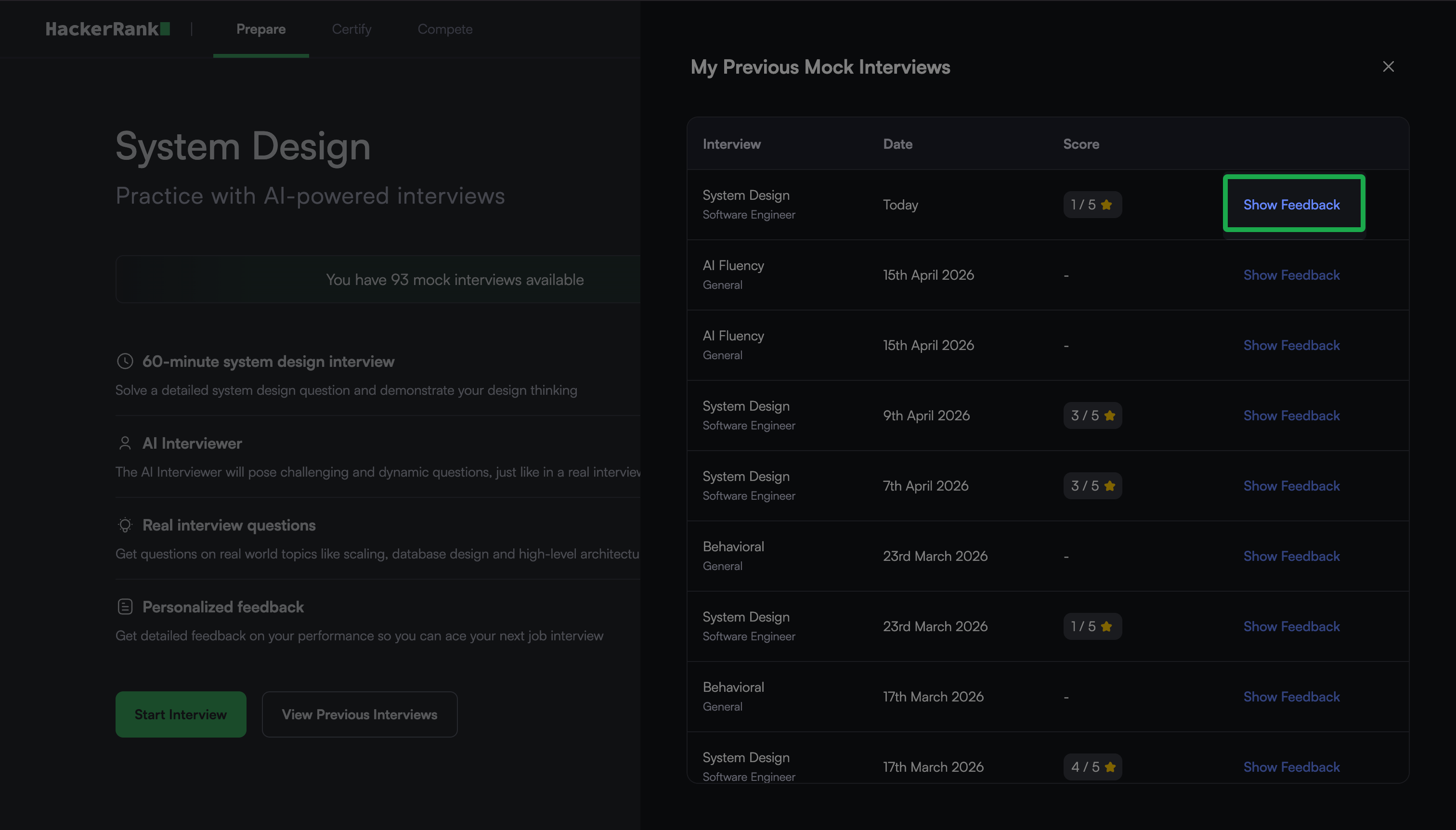
Viewing previous attempts
To view your previous System Design mock interviews:
Go to the Prepare tab.
Locate the System Design card under the AI-powered Mock Interviews section.
Click Take Interview.
Click View Previous Interviews.
The My Previous Mock Interviews dialog displays a list of your previous mock interviews, including the date and score for each.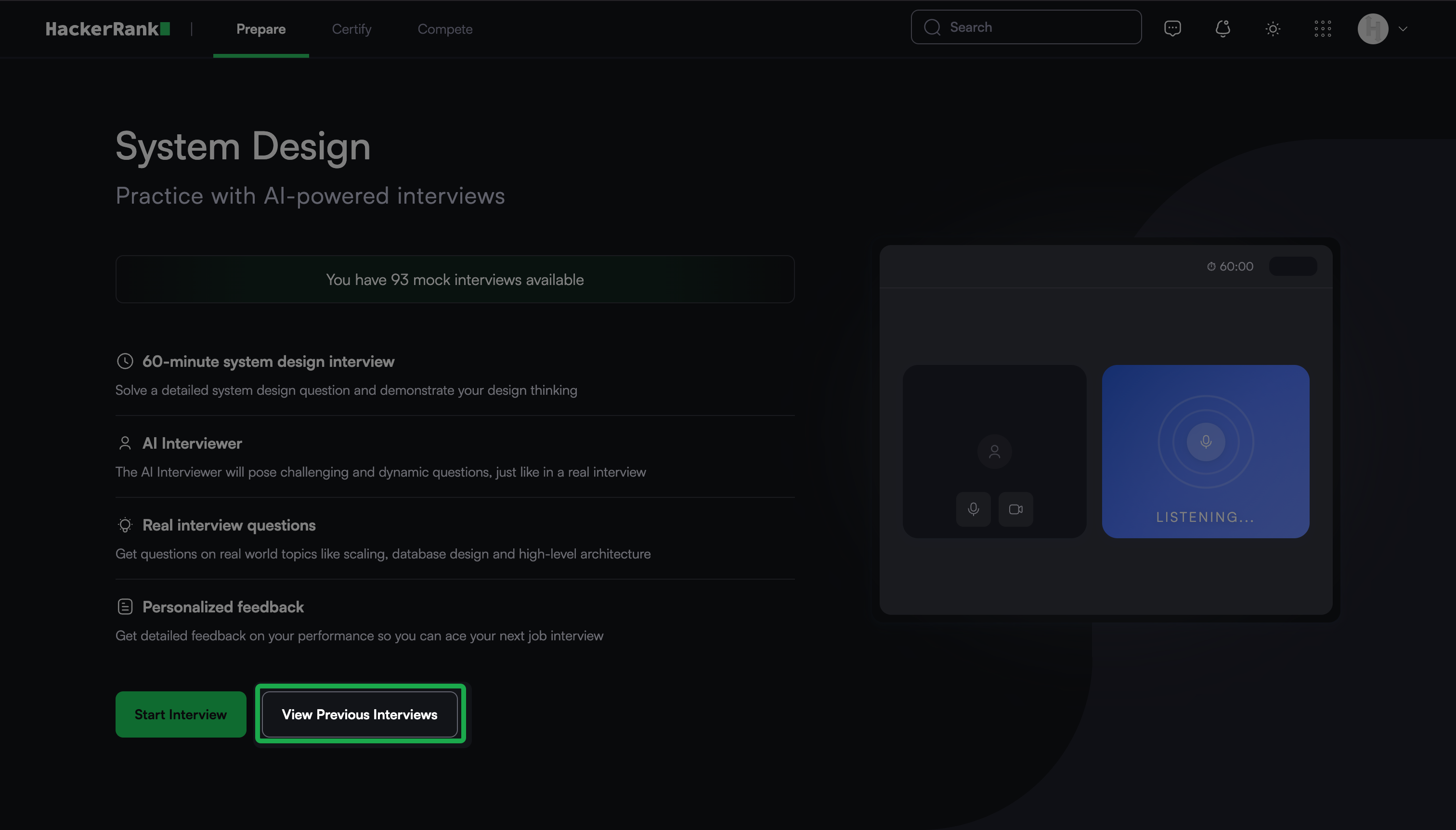
Click Show Feedback next to an attempt to view the detailed feedback report.