Technical Screen Mock Interview
Last updated: February 19, 2026
The Technical Screen mock interview uses an AI-powered, voice-based interviewer to conduct fully autonomous interviews for technical and non-technical roles.
The interview mirrors real-world interview structure and rigor. It provides structured, unbiased feedback to help you evaluate your performance.
Available roles
You can take a Technical Screen mock interview for the following roles:
Software Engineer
Frontend Developer
Backend Developer
AI Engineer
Forward Deployed Engineer
Custom Role
Note: If you select Custom Role, you can paste a job description. The system generates an interview tailored to that role.
Prerequisites
Before you begin, ensure you have the following:
Stable internet connection
Working microphone
Quiet, distraction-free environment
Note: Block at least 30 minutes of uninterrupted time to complete the mock interview successfully.
Taking Technical Screen mock interview
To take the Technical Screen Interview:
Log in to HackerRank Community using your credentials.
Go to the Prepare tab.
Locate the Technical Screen card under the AI-powered Mock Interviews section.
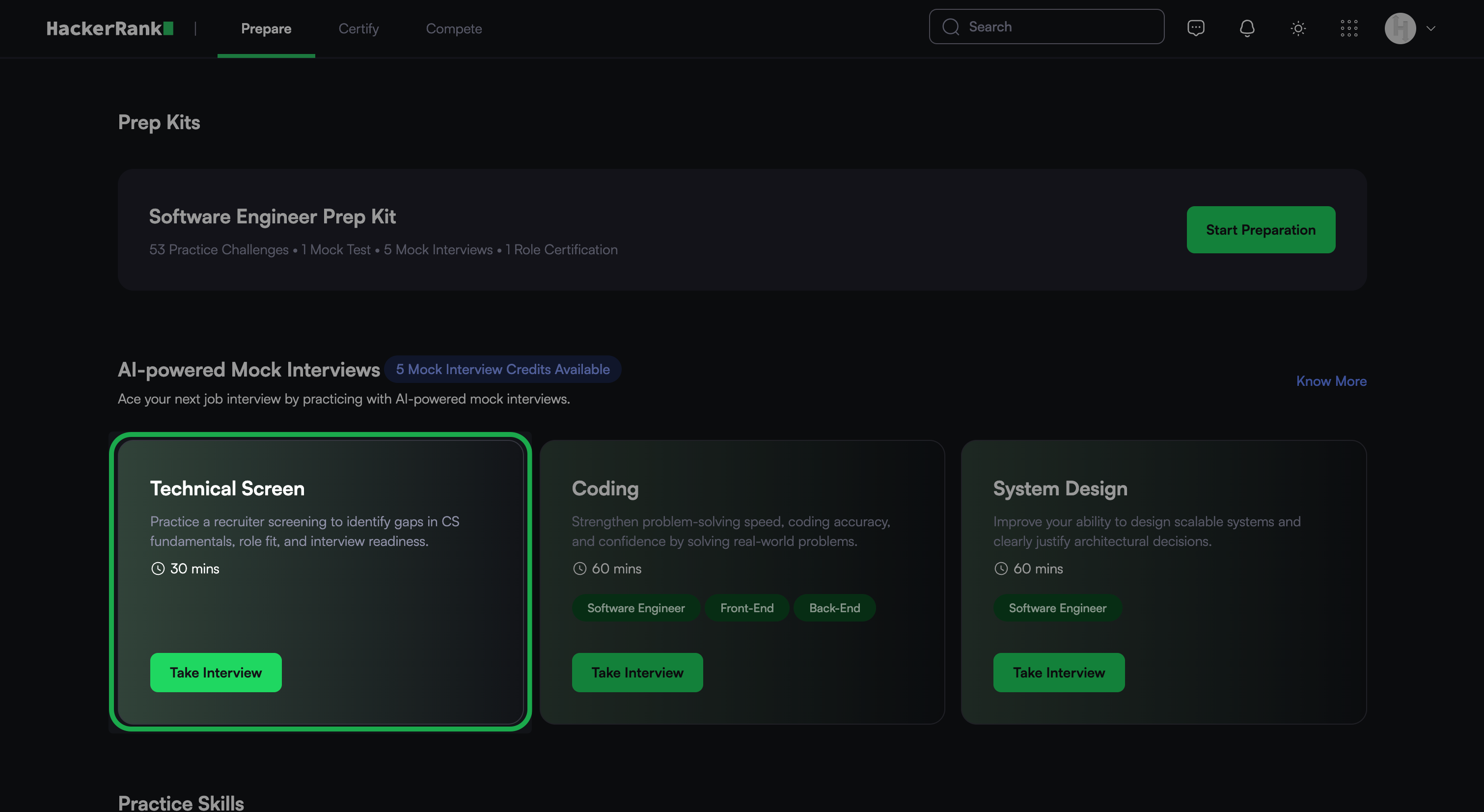
Click Take Interview.
Click Start Interview.
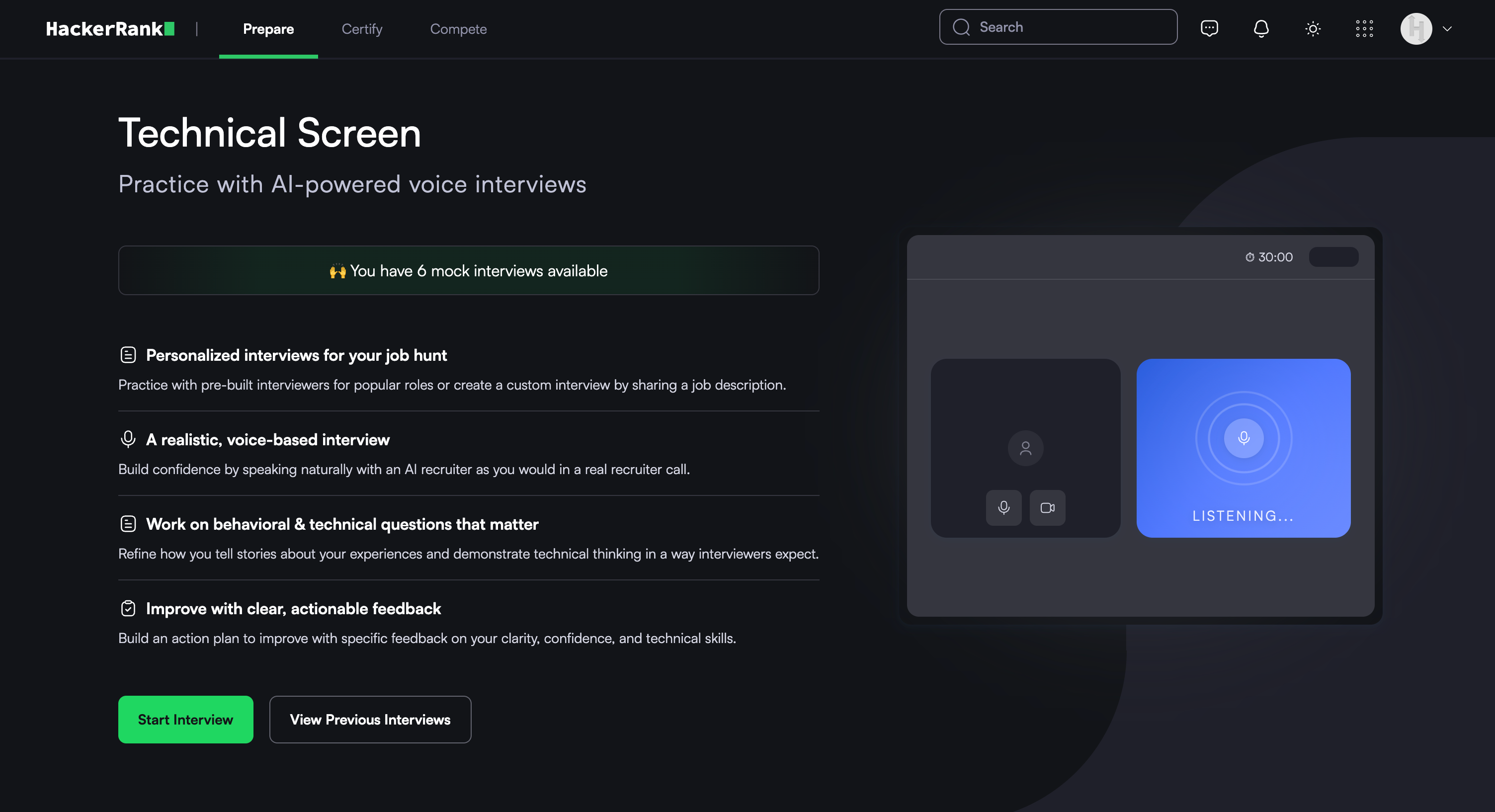
Note: Check the banner to confirm available mock interview attempts. If needed, purchase additional credits. For more information, refer to the 📄 Purchase Mock Interview Credits.
In the Choose Your Mock Interview Experience dialog, select one of the following options:
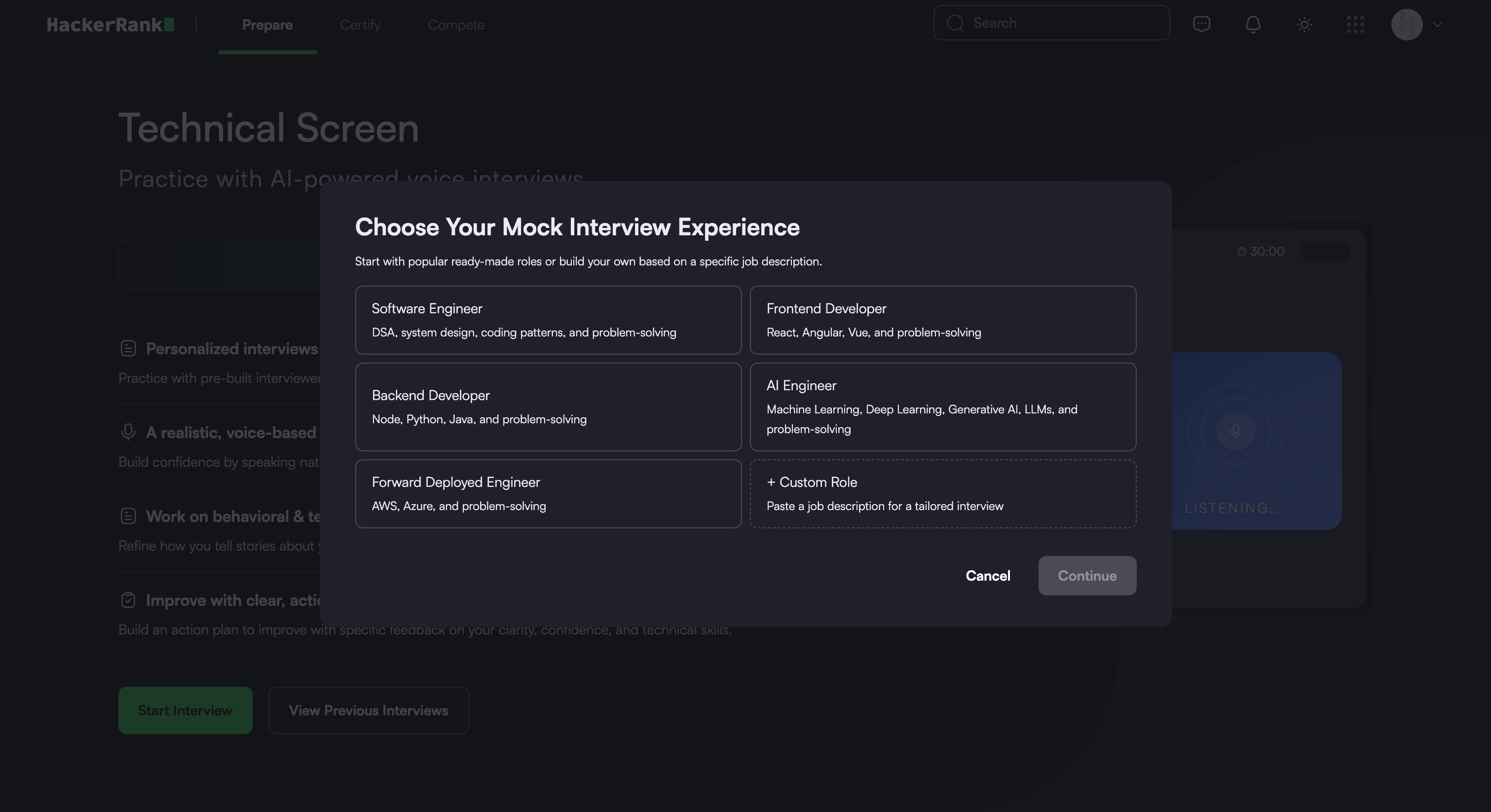
Predefined role:
Select a predefined role. For example, Software Engineer, AI Engineer or Forward Deployed Engineer.
Click Continue.
Custom role:
Select Custom Role.
Paste the job description in the text box.
Click Continue.
Allow the browser to access your camera and microphone when prompted.
In the Audio & Camera Settings, review and adjust your microphone, speaker, and camera.
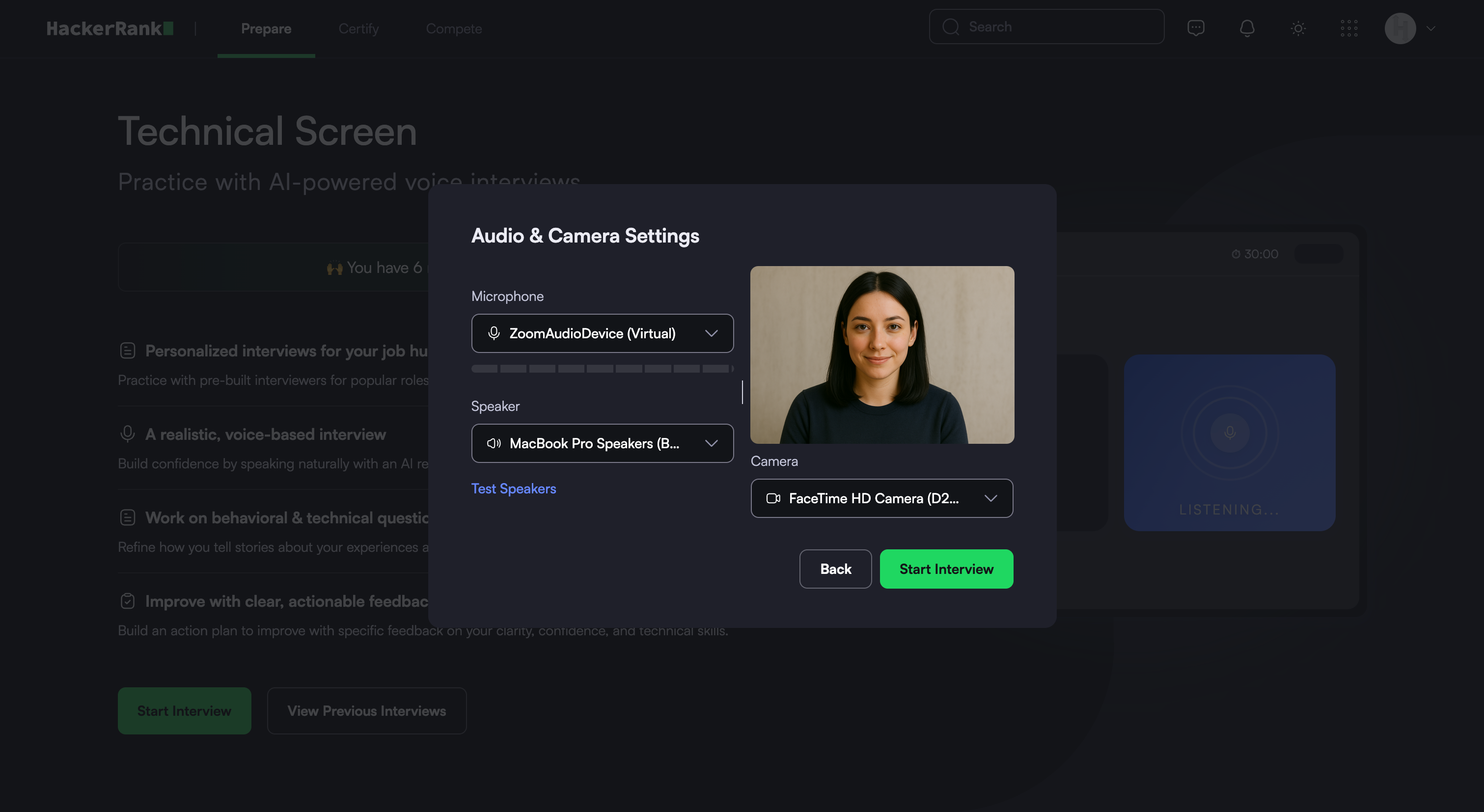
Note: Select Test Speakers to verify your audio.
Click Start Interview. The system redirects you to the interview interface.
Interview experience
At the start of the interview, the AI Interviewer:
Introduces the interview
Explains the interview flow
Describes the topics you will discuss
Answers any questions you have before the interview begins
During the interview, the AI Interviewer keeps the conversation natural and interactive. It:
Asks follow-up questions based on your responses
Explores topics in more depth when needed
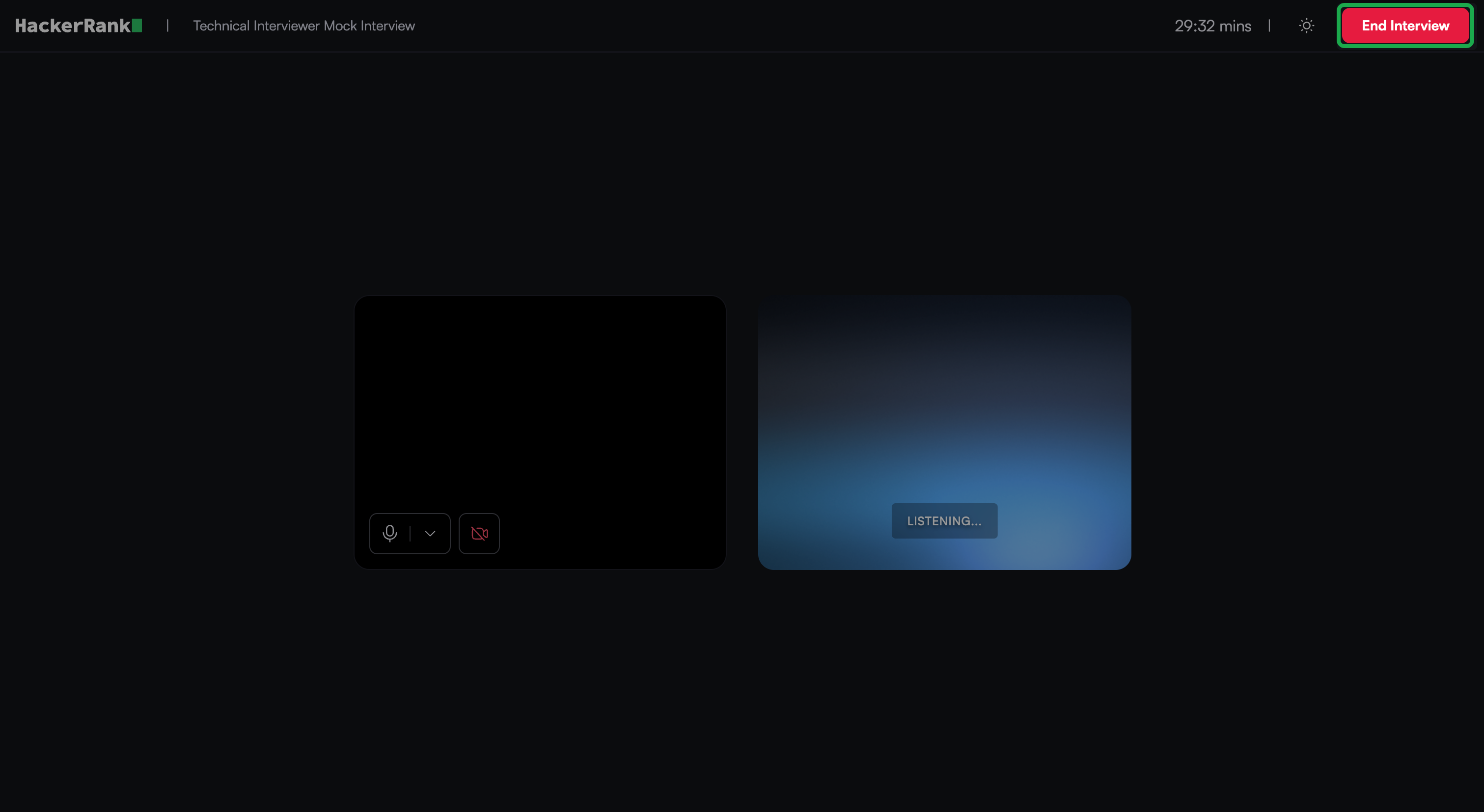
You can view the remaining interview time in the upper-right corner of the screen.
Interview controls
During the interview, you can use the following controls:
Microphone: Mute or unmute your microphone using the microphone icon.
Self-view: Show or hide your video using the video icon.
Ending an Interview
When the interview concludes, the AI interviewer confirms that you are ready to end the session. The AI interviewer then ends the interview.
Alternatively, you can end the interview manually.
To end the interview manually:
Click End interview in the upper-right corner of the interview screen.
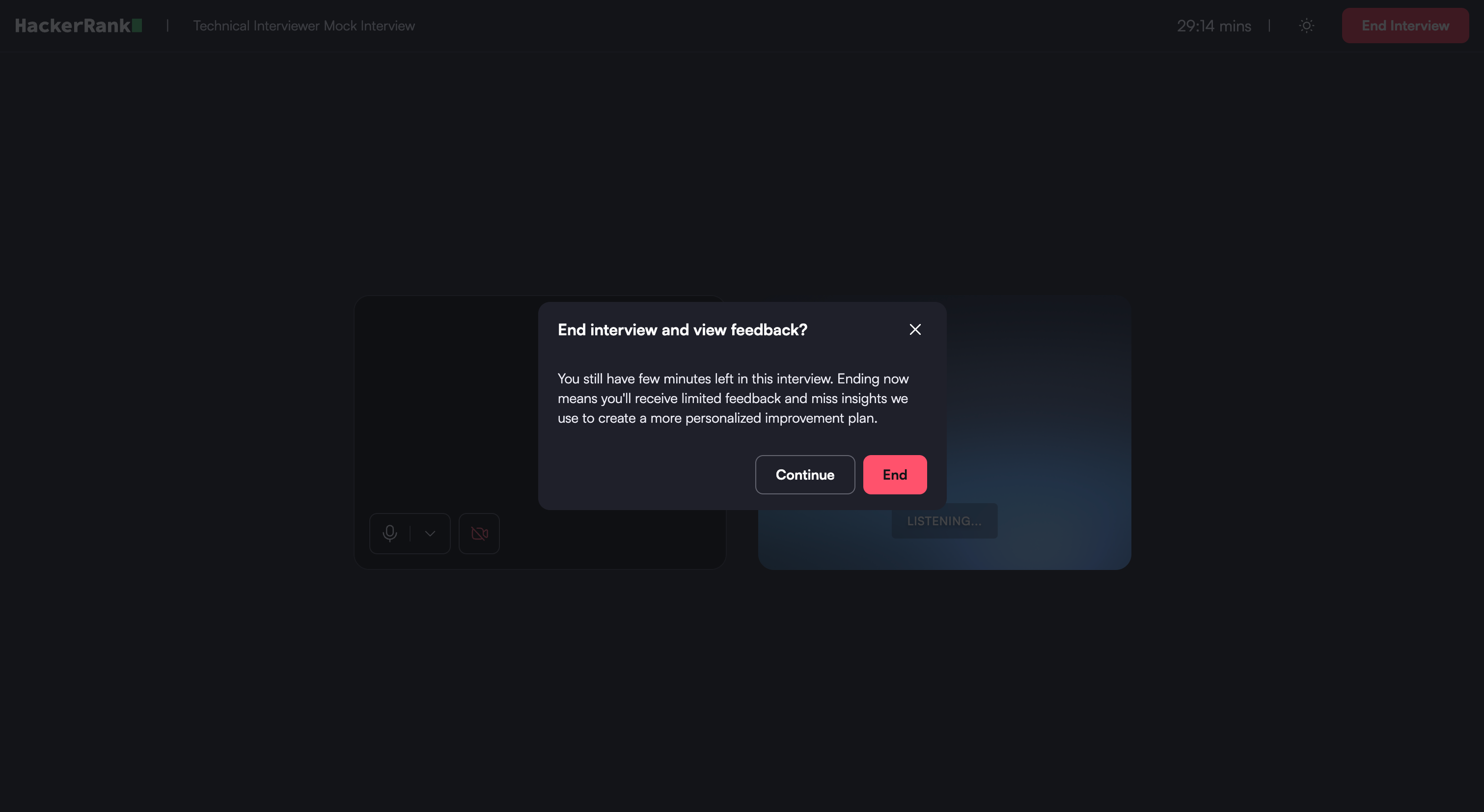
In the confirmation dialog, click End.
The system redirects you to the feedback report page.
Feedback report
After you complete the interview, the system generates a feedback report.
The report summarizes your AI interview and organizes evidence and feedback so you can quickly evaluate your performance.
You can use the report to review recommendations, interview responses, and section-level feedback in one place.
Feedback report components
The report includes the following components:
Overall recommendation: The report assigns an overall rating, such as Strong Fit, Moderate Fit, or Weak Fit, to summarize your performance across all interview sections.
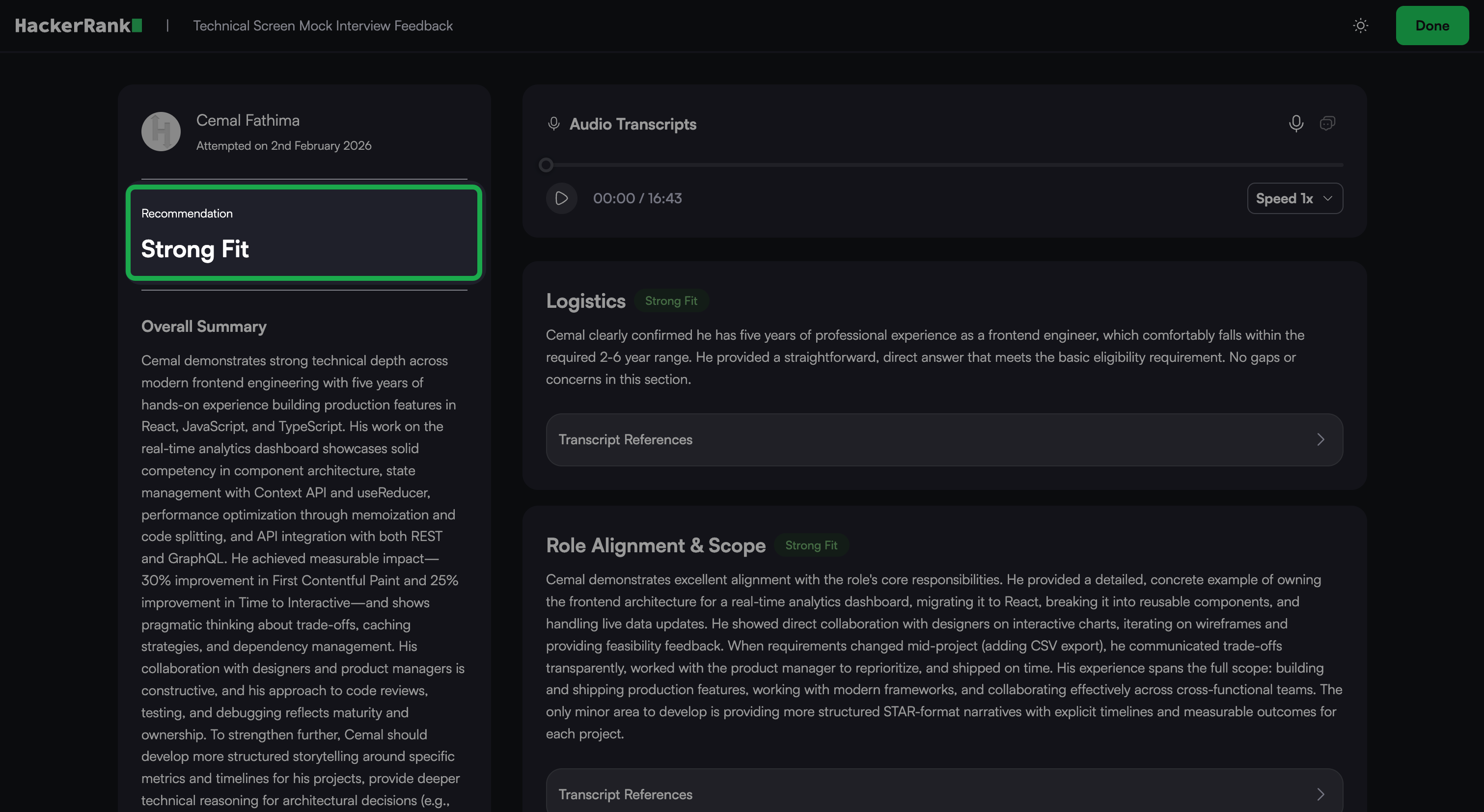
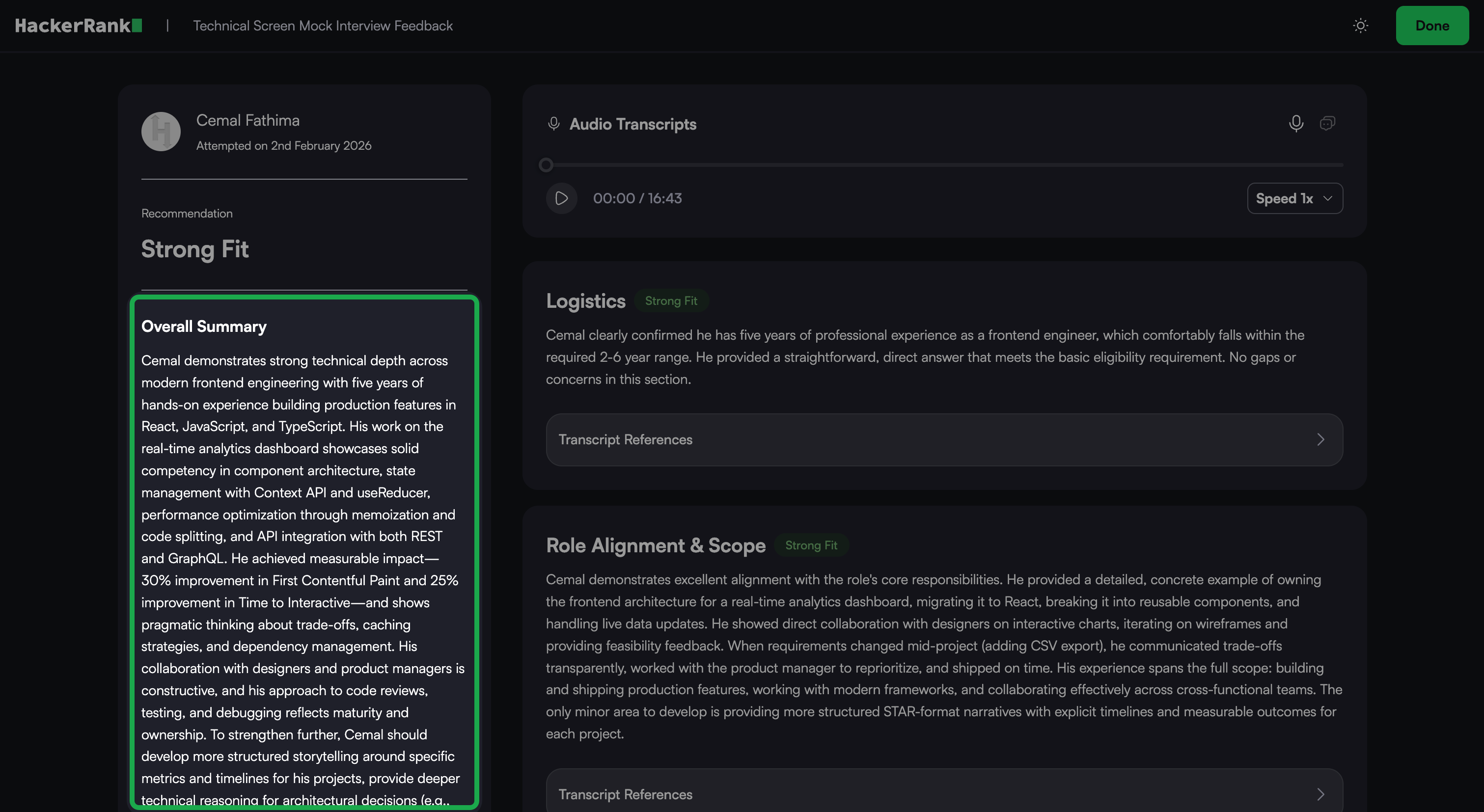
Overall summary: A short summary explains the hiring recommendation. It highlights your key strengths and areas for improvement.
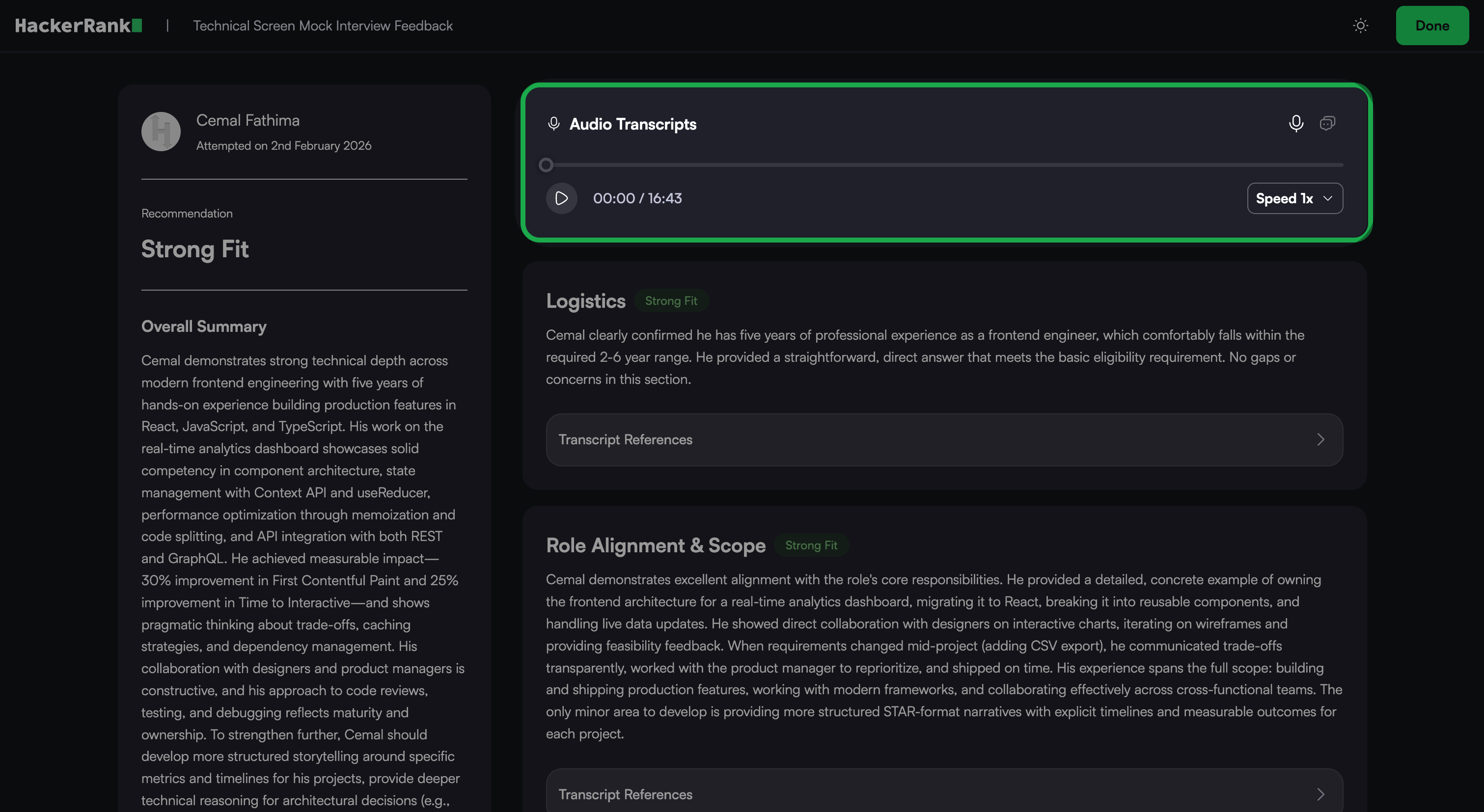
Interview Recording and Transcript: The report includes a full interview recording with a synchronized transcript.
You can: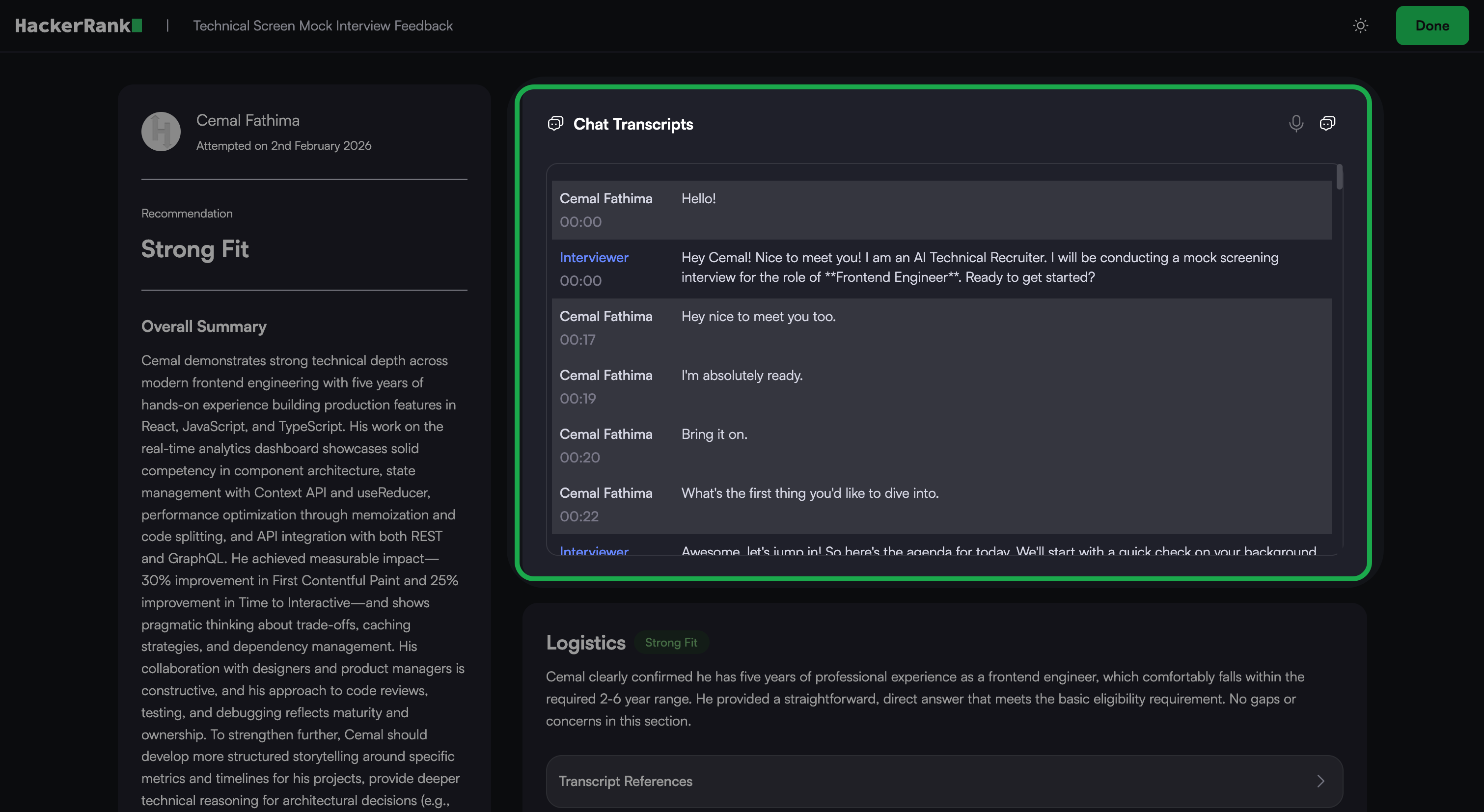
Switch between recording and transcript views
Play, pause, and scrub the timeline
Adjust playback speed
Review responses alongside timestamps and speaker labels
Section-based feedback: The report organizes feedback by interview section.
Each section includes: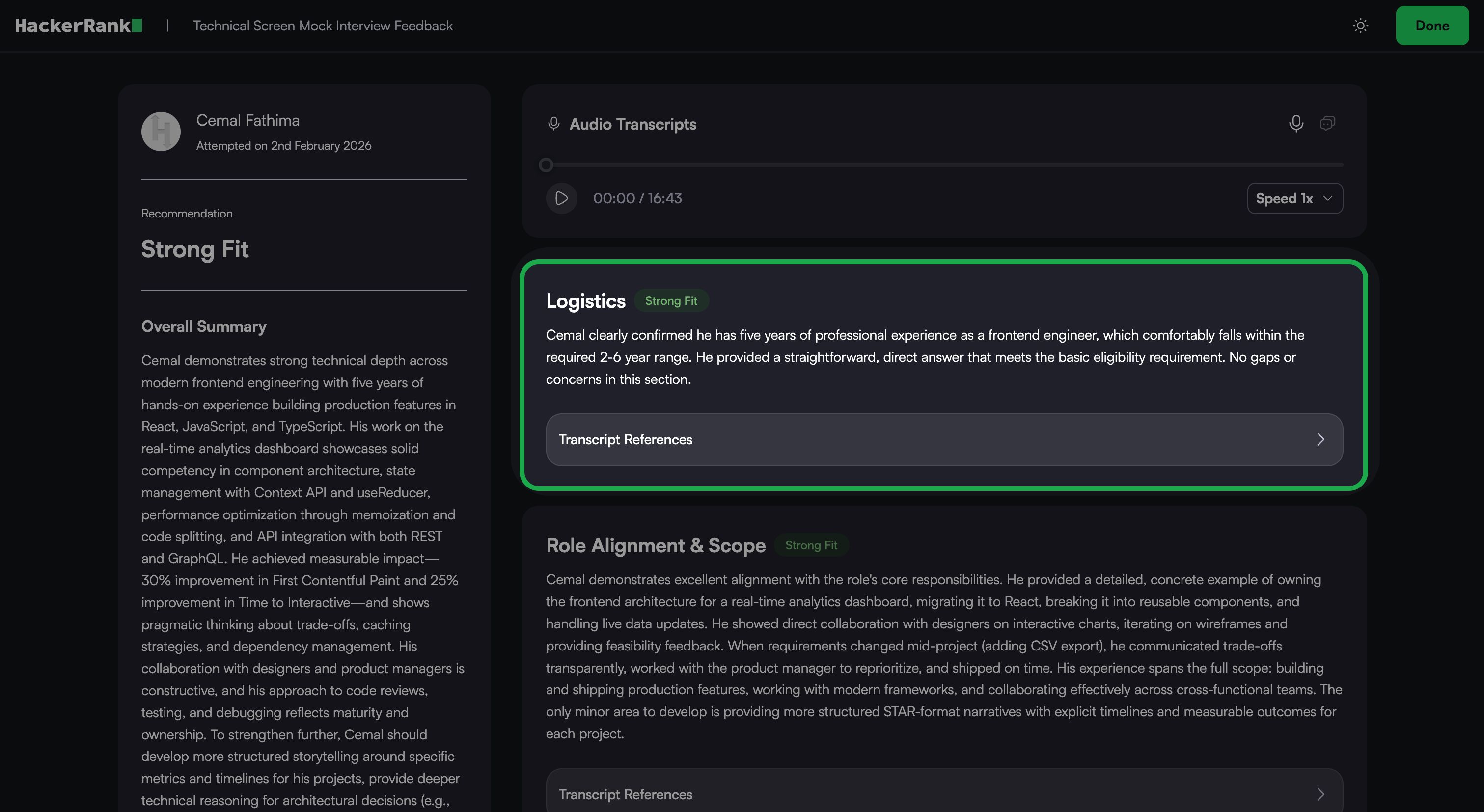
A rating (Strong, Moderate, or Weak)
A short narrative that describes your performance in that area
A transcript reference
Use the section-based feedback to understand your strengths and gaps in detail.
Viewing previous attempts
To view your previous Technical Screen mock interviews:
Go to the Prepare tab.
Locate the Technical Screen card under the AI-powered Mock Interviews section.
Click Take Interview.
Click View Previous Interviews.
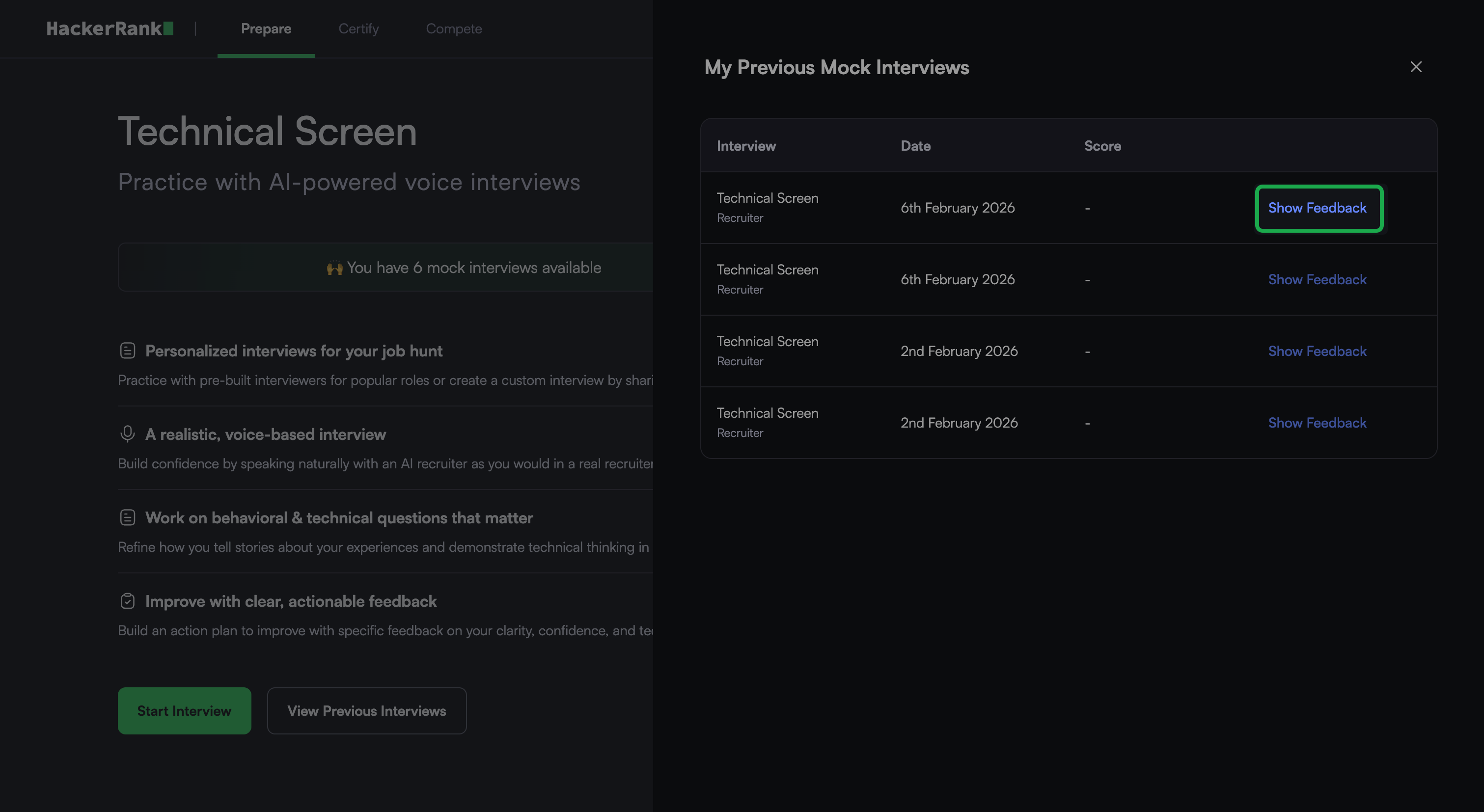
The My Previous Mock Interviews dialog displays a list of your previous mock interviews, including the date and score for each.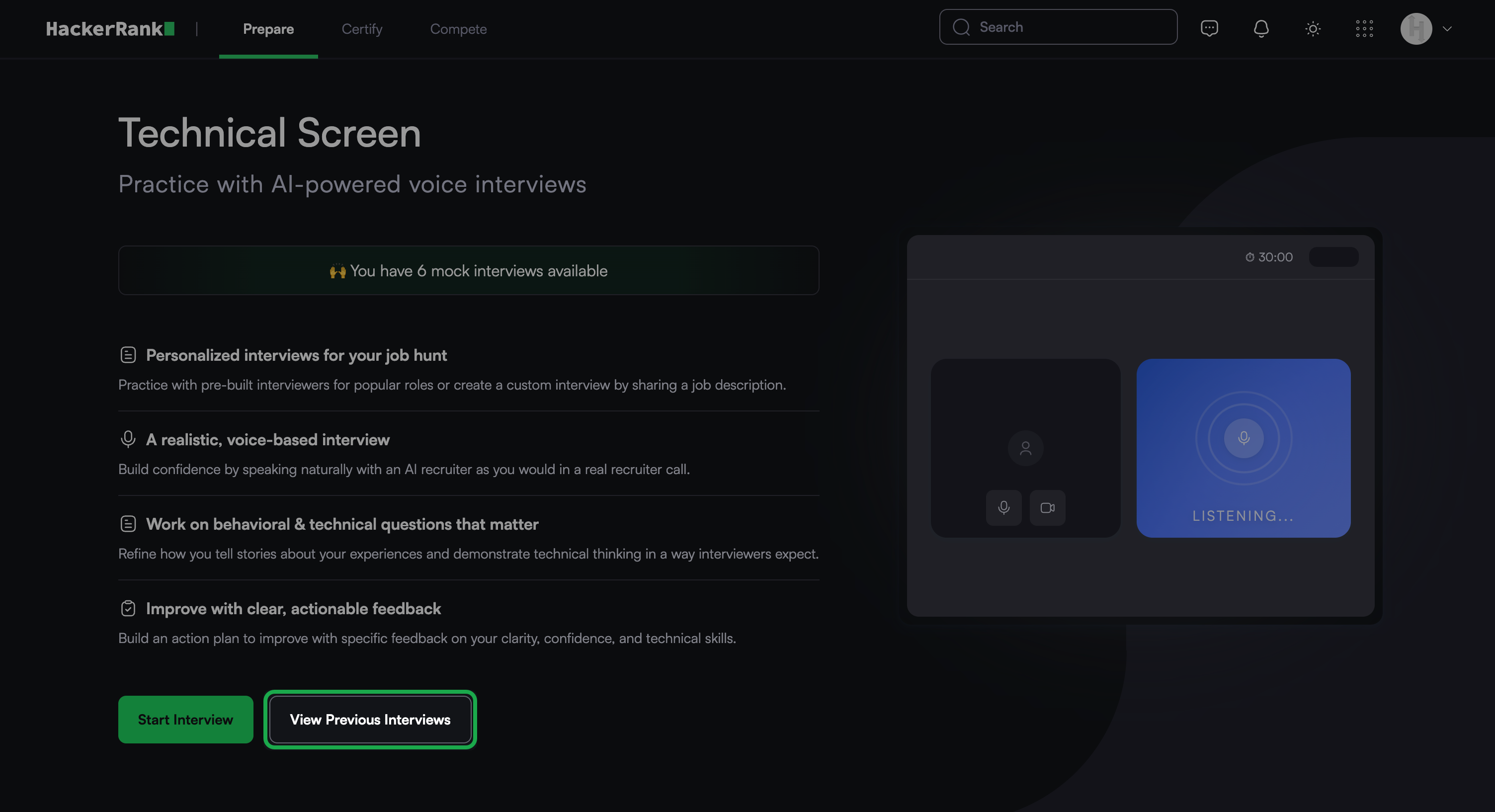
Click Show Feedback next to an attempt to view the detailed feedback report.