Update or Reset Password
Last updated: April 4, 2025
You can change your password at any time to keep your account secure. The password must be at least six characters long. Use a combination of letters, numbers, and special characters for added security.
Updating password
To update a password:
Log in to HackerRank Community using your credentials.
Click the profile icon in the top-right corner.
Select Settings from the drop-down menu.
Click Password on the left pane.
Enter your current password and new password, and retype your new password to confirm.
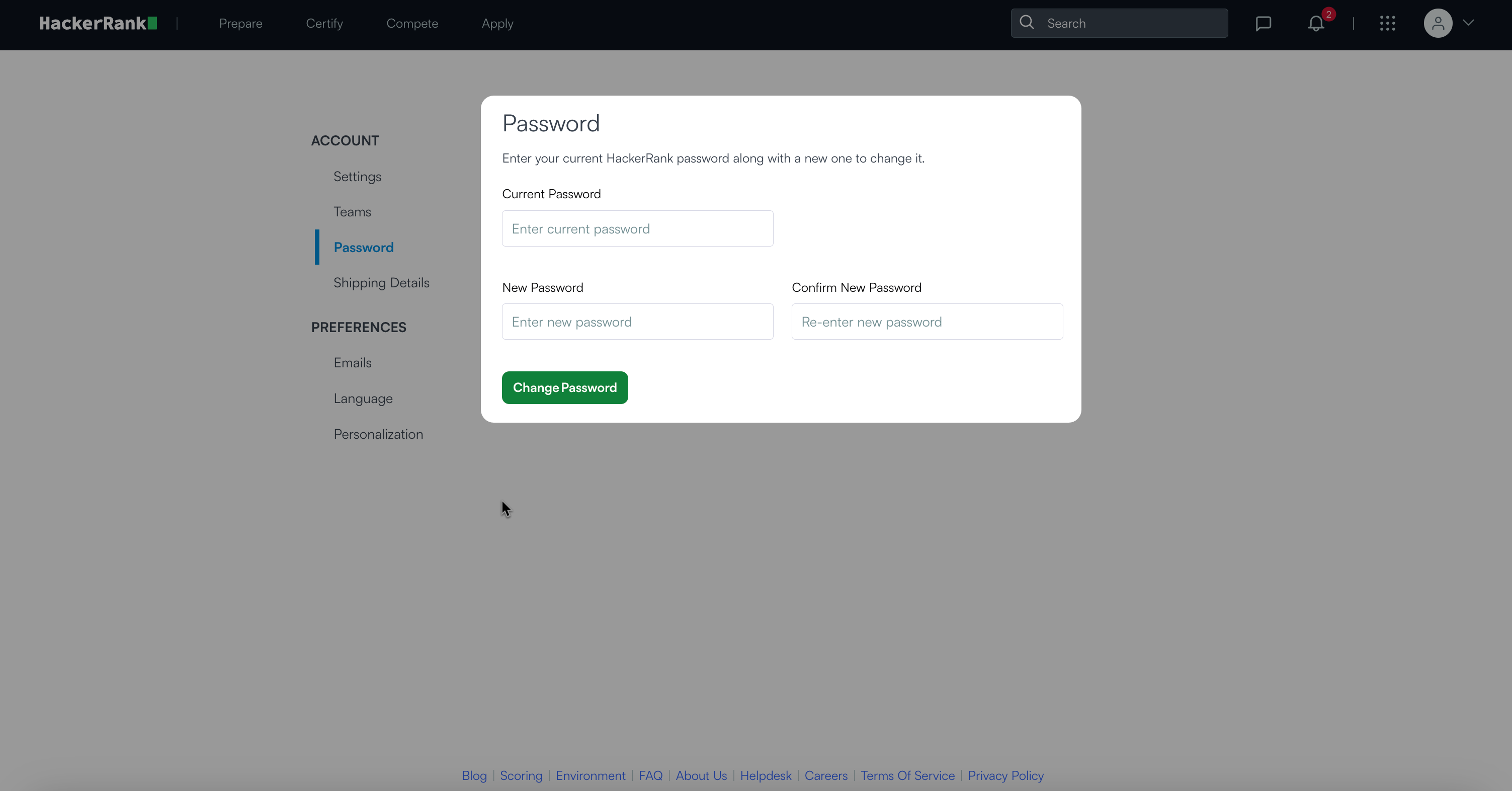
Click Change Password to save the update.
Note: If you forget your current password, use the Forgot Password? option on the login page to reset it.
Resetting password
To reset a forgotten password:
Go to the HackerRank Community login page.
Click Forgot Password? under the password field.
Enter the email address or username associated with your account and select the verification checkbox.
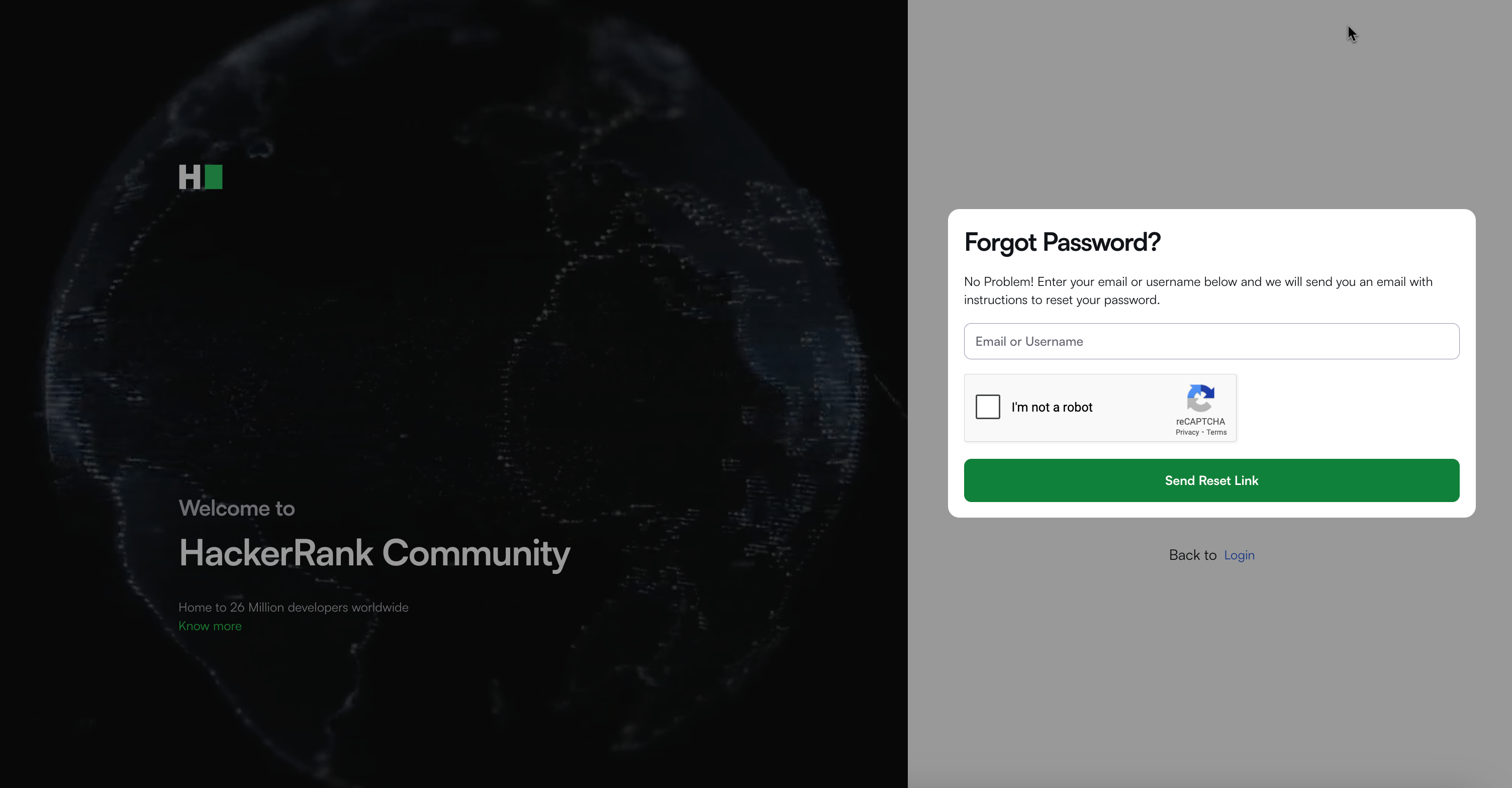
Click Send Reset Link.
Check your email for a reset link from HackerRank. If you do not receive an email, check your spam folder or verify that you used the correct email or username.
Follow the instructions in the reset email to create a new password.